Guide · WooCommerce, PrestaShop, Wix, Square, Squarespace, BigCommerce & Webflow
How to Connect Squarespace to Pinterest
Pinterest shoppers save products to buy later, and a Pinterest catalog turns each of your Squarespace products into a shoppable Product Pin with its price and a link back to your site. Squarespace can connect your Pinterest account for Save buttons, but it has no catalog feed, so how you build one is up to you.
This guide covers the ways to get your Squarespace store onto Pinterest, what Pinterest needs from every product, how your Squarespace fields map to Pinterest's, and the problems Squarespace stores run into most.
Three ways to connect Squarespace to Pinterest
1. Squarespace's built-in integrations
Squarespace has no Pinterest catalog integration. Connecting Pinterest in Squarespace adds Save buttons and lets you push new posts to a board, but it doesn't send your products to a Pinterest catalog - so Squarespace stores use a feed tool or a connector that hosts a data source URL for Pinterest.
2. Export a file yourself
Squarespace can export your products to a CSV from your Inventory panel, but the file uses Squarespace's own columns - not the field names and formats Pinterest expects - and it's a snapshot, so it's out of date as soon as a price or stock level changes. If you go this way, start from our free Pinterest Catalog CSV Template Generator so at least the columns are right.
3. A store catalog connector
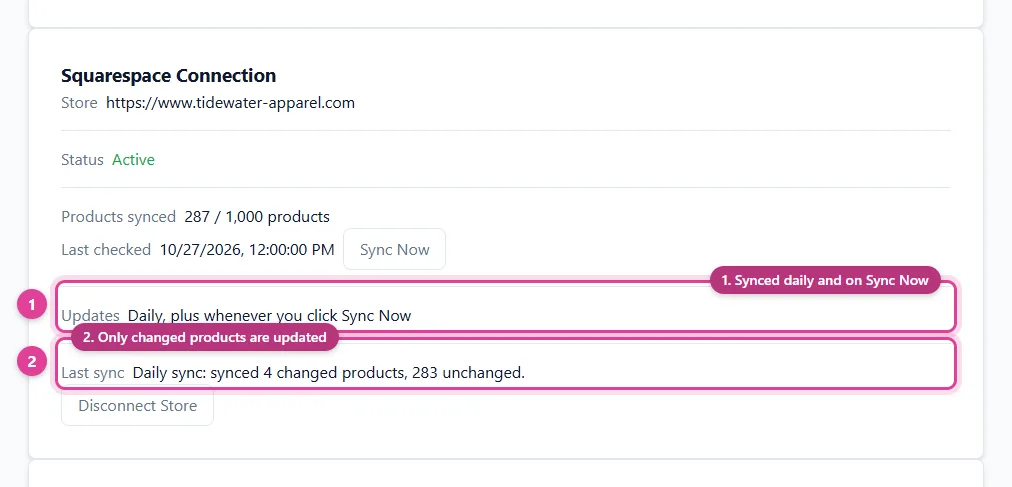
A connector reads your Squarespace store through Squarespace's Commerce API once you approve read-only access on Squarespace's own authorization page, and builds the Pinterest feed for you. Squarespace doesn't notify apps when products change, so a connector reads your store on a schedule - typically once a day - and whenever you ask it to. The connector hosts the feed at a URL that Pinterest reads on a schedule, and one connection can usually feed several platforms at once.
What Pinterest needs
- A Pinterest business account with your website claimed - every product
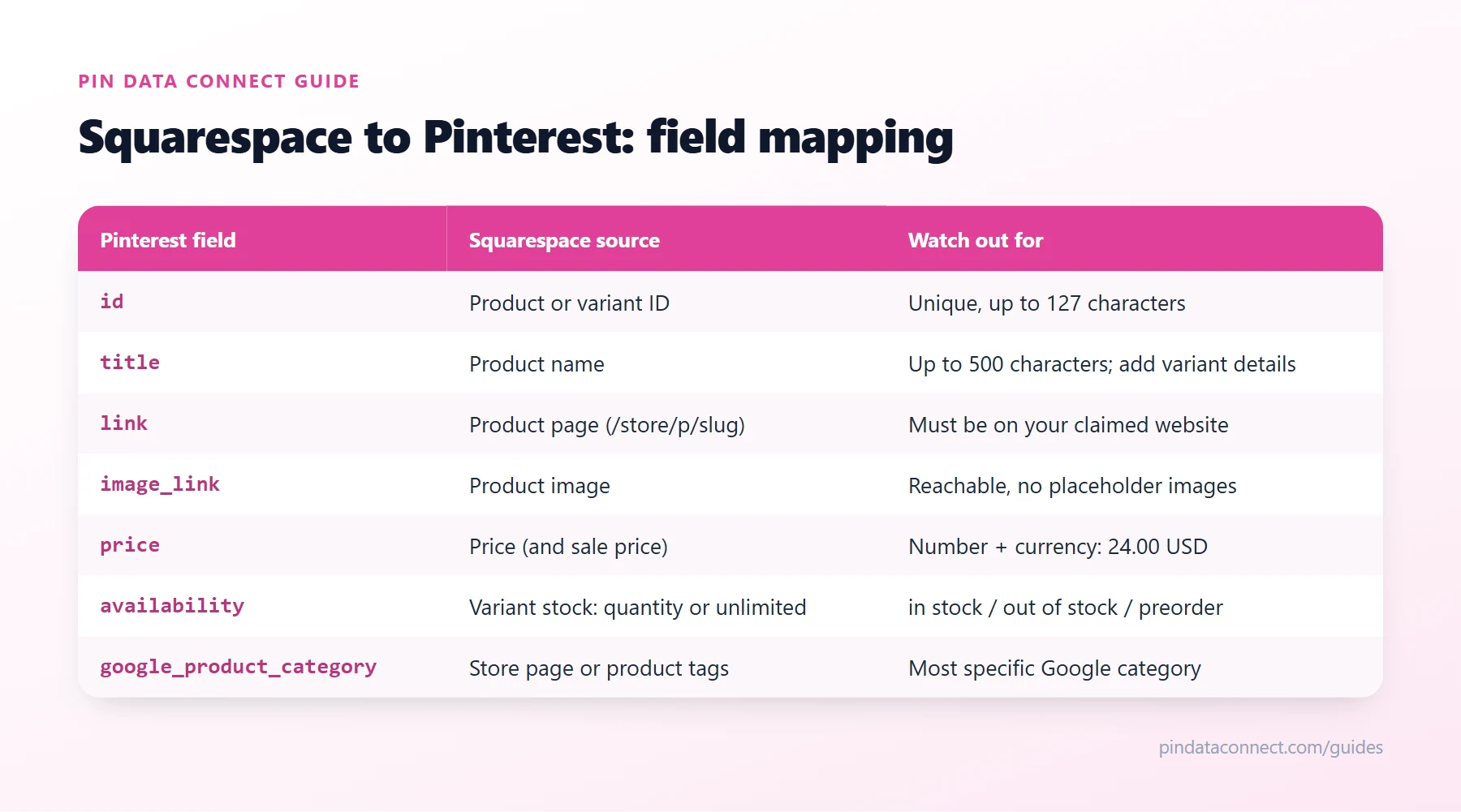
linkmust be on the domain you claimed. - Seven fields per product:
id,title,description,link,image_link,price, andavailability(in stock,out of stock, orpreorder), plusitem_group_idfor variants. - A Google product category is strongly recommended - it's how Pinterest groups and targets products.
- A data source - a CSV, TSV, or XML file uploaded once, or hosted at a URL that Pinterest re-reads about once every 24 hours.
How your Squarespace fields map to Pinterest
The table above shows where each Pinterest field comes from in your Squarespace store. A few Squarespace details need extra care:
- Variants: each variant of a product (Navy / M, Navy / L...) should become its own listing with its own price, stock, SKU, and image, grouped under the product with a shared
item_group_id. Name your options Color and Size so they're read as color and size. - Sale prices: when a variant is marked on sale in Squarespace, its regular price is the price and the sale price is the sale price - Pinterest shows both.
- Your domain: a free Squarespace site's product pages live on a
squarespace.comaddress, which usually can't be claimed or verified as your own website with Pinterest. Connect your own domain to your Squarespace site before you build the feed. - Product type: Squarespace's API doesn't share store categories, so map each store page - or, more precisely, product tags that say what the product is ("Mugs", "Hoodies") - to a Google product category. Skip tags like "Sale" or "New".
- Brand and identifiers: Squarespace has no brand field. Use your site's name as a default brand - for your own products, it is the brand. If you resell packaged goods, add each variant's GTIN or MPN in Squarespace; most own-brand and handmade products don't have a GTIN anyway.
- Clothing details: Squarespace has no gender or age group fields, and Google and Facebook require them - with a color and a size - on clothing and shoes. Set them by product name if your tool supports it.
Step by step
- Get your Pinterest account ready - see "What Pinterest needs" above.
- Approve read-only access in Squarespace. A connector sends you to Squarespace's own authorization page; sign in, choose your site, and approve read-only access to your products and inventory. Nothing to copy or paste, and read-only is all a catalog feed needs.
- Map your product types to Google product categories. Pinterest needs to know what each product is. Map each of your store pages and product tags to one category from the Google product category list once, and every product with that value is categorized from then on.
- Add the data source in Pinterest. In Pinterest Business, open Catalogs, add a data source, and paste your feed URL (with its username and password if it's protected). Pinterest checks it, then re-reads it about once a day.
- Check the first import. Review the errors Pinterest reports and fix them in Squarespace, not in the feed - your store stays the single source of truth.
Common Squarespace to Pinterest problems
- Products on a free squarespace.com address. Pinterest wants product links on a website you've claimed or verified, which a free Squarespace address usually can't be. Connect a custom domain first.
- A site-wide password. Shopping platforms can't reach product pages behind a password, so turn off your site password before you build the feed.
- Hidden products, disabled store pages, and non-physical products. Only visible physical products on an enabled store page belong in the feed - hide a product or disable its store page in Squarespace and it should drop out. Digital downloads, services, and gift cards aren't sold through shopping catalogs.
- "Domain not claimed" or links rejected. Claim the exact domain your product pages use, including whether it has www.
- Products missing after an upload. Check the data source's errors in Pinterest - How to Fix Pinterest Catalog Errors covers each one.
Related guides
For more on Pinterest itself, see What Is a Pinterest Catalog?. On a different store platform? WooCommerce to Pinterest, PrestaShop to Pinterest, Wix to Pinterest, Square to Pinterest, BigCommerce to Pinterest, and Webflow to Pinterest cover the same setup for those stores.
Frequently asked questions
Can I connect Squarespace to Pinterest without a plugin?
Yes. Pinterest reads a product feed, so you can build one from your Squarespace products yourself or use a connector that reads your store through its API and hosts the feed at a URL Pinterest fetches on a schedule - nothing to install on your site.
Does Squarespace have a built-in Pinterest integration?
Not for catalogs. Squarespace can connect your Pinterest account for Save buttons and for pushing posts to a board, but it has no Pinterest catalog feed, so Squarespace stores use a feed tool or a connector that hosts a data source URL for Pinterest.
Do Squarespace product variants sync to Pinterest?
They should, when your tool supports them: each variant becomes its own Pinterest listing with its own price, stock, SKU, and image, grouped under the product with a shared item_group_id. Pin Data Connect's connector does this for every variant of a visible physical product.
How often does Pinterest update my Squarespace products?
It depends on both sides: Squarespace doesn't notify apps when products change, so a connector reads your store on a schedule - Pin Data Connect's reads it daily and whenever you click Sync Now, and Pinterest re-reads a hosted data source about once every 24 hours. A hosted feed URL means you never re-upload anything.
Do I need to claim my website on Pinterest?
Yes. Pinterest catalogs only accept products whose link is on a website you have claimed in your Pinterest business account, so claim your store domain before adding the data source.
Connect Squarespace to Pinterest - and three more platforms
Pin Data Connect's Store Product Catalog Connector links your Squarespace store in one click and keeps your Pinterest catalog in sync - variants grouped, sale prices included, clothing details set by product name, refreshed daily and whenever you click Sync Now - with Pinterest, Facebook, Google, and Bing all in one subscription.
See the Store Product Catalog Connector →
Save this guide for later
Pin it to one of your Pinterest boards so it's easy to find when you're ready to set things up.
Save to Pinterest