Guide · WooCommerce, PrestaShop, Wix, Square, Squarespace, BigCommerce & Webflow
How to Use Your Google Shopping Feed for a Facebook Catalog
A Facebook product catalog powers shopping on Facebook and Instagram and Meta's catalog ads, and it reads product feeds much like Google does. If your store already makes a Google Shopping feed, Commerce Manager can usually take that same file as a scheduled data feed.
The catch is that Meta requires a few fields Google treats as optional. This guide covers those, the setup in Commerce Manager, and what to do when changing your Google feed for Meta isn't an option.
Can Meta read a Google Shopping feed?
Yes, in most cases. Commerce Manager data feeds accept XML (RSS and Atom, in Google's format), CSV, TSV, and Google Sheets, and Meta's field names mostly match Google's. What decides whether your products go live is whether each one has everything Meta requires.
What Meta requires that Google doesn't
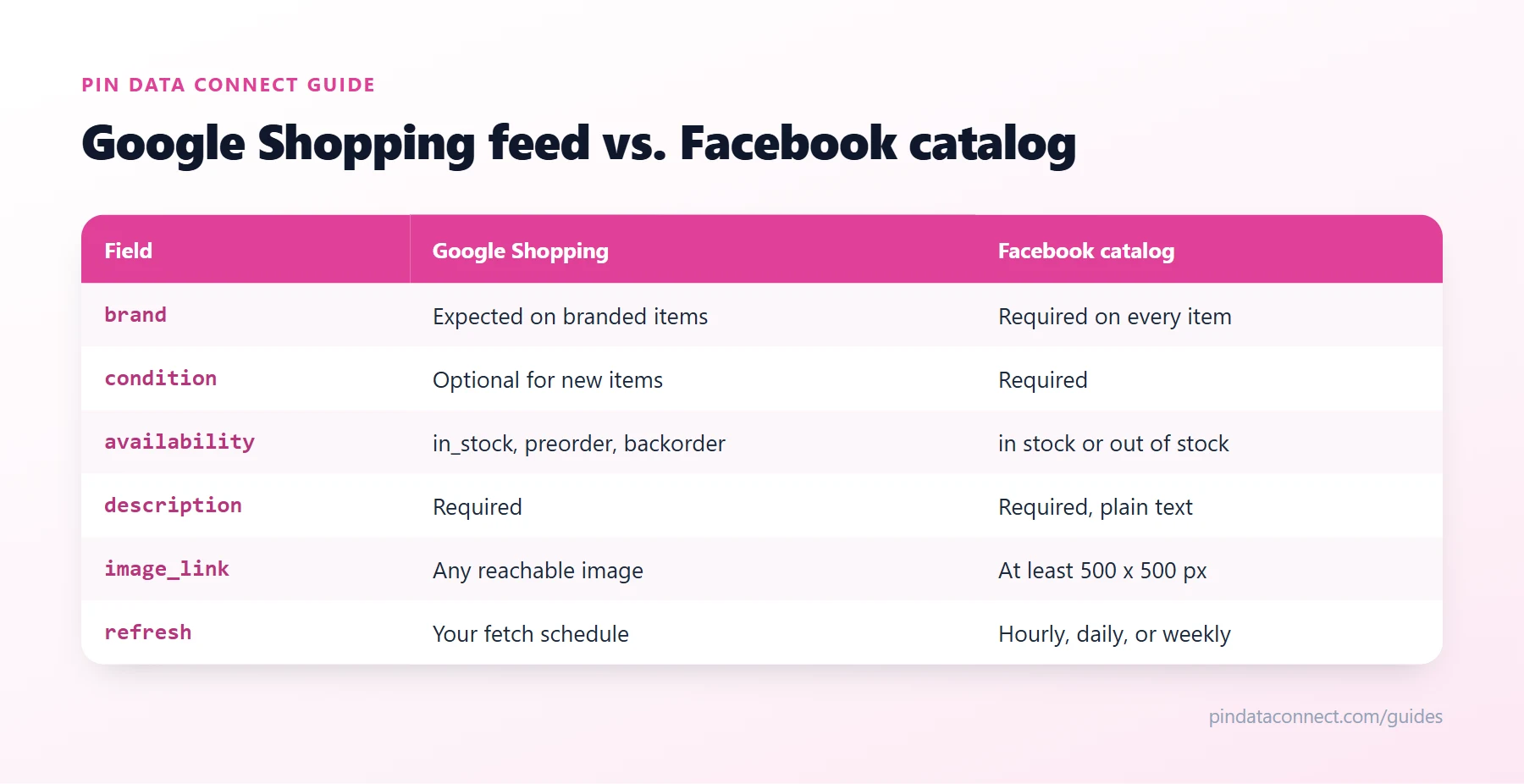
- Brand on every product. Google only expects it on new, branded items; Meta rejects any item without one. If you make your own products, your store name is your brand.
- Condition on every product -
new,refurbished, orused. - A description, in plain text. Strip any HTML your feed carries.
- Availability as
in stockorout of stock. Meta has no preorder value, so backordered and preorder items need one of those two. - Images at least 500 x 500 pixels, in JPEG or PNG.
- Clothing details. Apparel needs gender, age group, color, and size - Google requires them too, but Google feeds sometimes leave them out for products Google categorizes differently.
Add it in Commerce Manager
- Open your catalog in Commerce Manager and go to Data sources.
- Add items with a data feed, choose a scheduled feed, and paste your feed's URL (with its login, if it's protected).
- Set how often Meta fetches it - hourly, daily, or weekly - and the currency your prices use.
- After the first upload, check the catalog's Issues tab for items Meta rejected.
When you can't change your Google feed
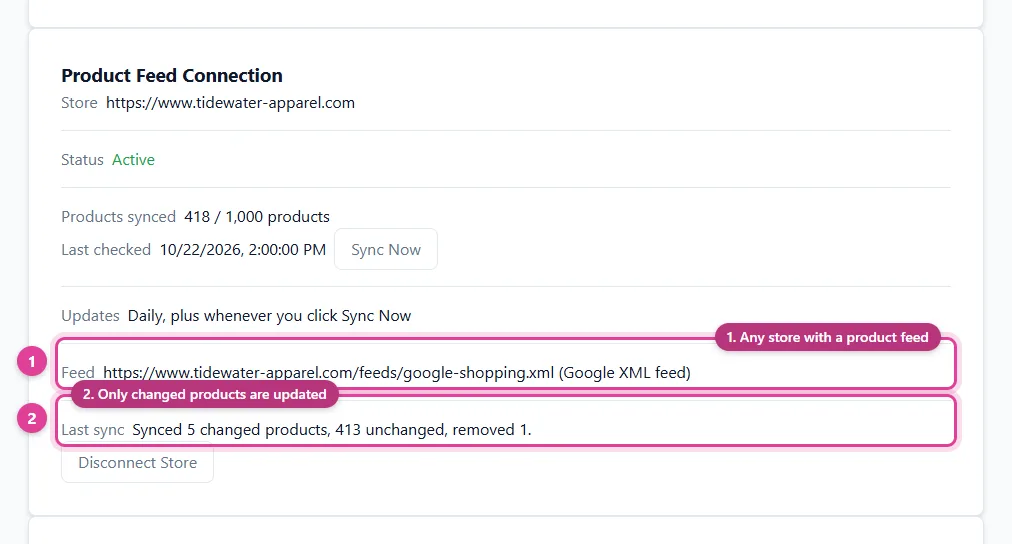
Adding brand, condition, and clothing details to your Google feed is the simplest fix - but the feed is often generated by a plugin or your platform, with no way to add fields. Meta's own data feed rules can fill in some missing values; a connector can go further, reading your Google feed every day and serving Meta its own copy with brand, condition, availability, and clothing details filled in, while your Google feed stays exactly as it is. Building a separate file instead? Start from our free Facebook Catalog CSV Template Generator.
Common problems
- "Missing brand." Every item needs one - see above.
- Prices that don't match your site. Meta checks your product pages; sale prices need
sale_price, not a loweredprice. - Duplicates. Use one data source per product list in each catalog.
More on fixing rejections: Facebook Catalog Feed Errors, Fixed.
Frequently asked questions
Can I use my Google Merchant Center feed for a Facebook catalog?
Usually, yes. Commerce Manager scheduled feeds accept Google-format XML, CSV, and TSV files, so a Google feed hosted at a URL can be added as a data source. Items still need everything Meta requires, such as brand and condition.
Why does Meta reject products that Google accepts?
Meta requires a brand and a condition on every product and only accepts in stock or out of stock as availability, while Google treats some of these as optional.
How often does Meta fetch a scheduled feed?
You choose hourly, daily, or weekly when you set up the scheduled feed in Commerce Manager.
Does the same catalog work for Instagram shopping?
Yes. A Commerce Manager catalog serves both Facebook and Instagram shopping and Meta's catalog ads.
Already have a product feed? Use it everywhere
Pin Data Connect's Store Product Catalog Connector reads the product feed your store already makes - Google XML, CSV, JSON, or a Google Sheet - every day, and builds your Pinterest, Facebook, Google, and Bing catalogs from it, with category mapping and clothing details filled in. One subscription covers all four.
See the Store Product Catalog Connector →
Save this guide for later
Pin it to one of your Pinterest boards so it's easy to find when you're ready to set things up.
Save to Pinterest