Guide · Facebook & Meta catalogs
Facebook Catalog Feed Errors, Fixed
After every upload or scheduled fetch, Meta Commerce Manager checks each product in your Facebook product catalog and lists anything it couldn't use. Most feed errors come from the same short list of causes: a missing field, a value in the wrong format, an image Meta can't use, or a feed URL it can't reach.
Here's how to find them and fix each one.
Where to find feed errors
In Commerce Manager, open your catalog and go to its data sources to see the latest upload for each Meta Commerce Manager data feed, with errors and warnings. The catalog's issues view also lists items that were rejected or have problems, with the field involved. Errors stop an item from being added or updated; warnings don't, but they can limit where the item appears.
Missing required fields
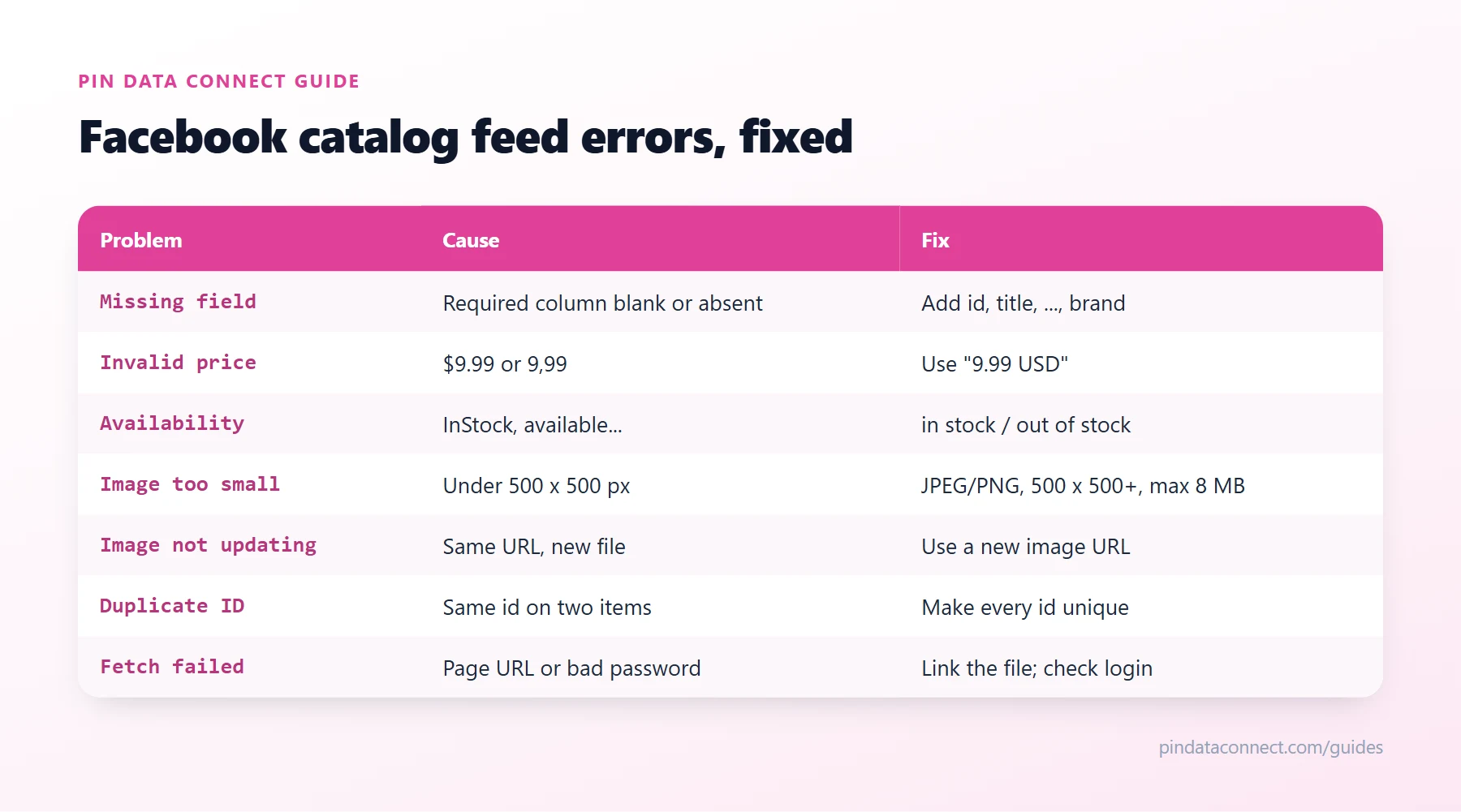
Every product needs id, title, description, availability, condition, price, link, image_link, and brand. If a column is missing from your Facebook catalog CSV or a value is blank, that item fails. Add the column or value, or remove the item. Brand is the one most often left out - use your own brand for products you make.
Values in the wrong format
- Price must be a number, a space, and a three-letter ISO 4217 currency code, with a period as the decimal point:
9.99 USD- not$9.99or9,99. - Availability must be exactly
in stockorout of stock- not "InStock" or "available". - Condition must be
new,refurbished, orused. - Sale price uses the same format as price and must be lower than it.
- Gender must be
female,male, orunisex; age_group one ofadult,all ages,teen,kids,toddler,infant, ornewborn.
Text that's too long or has HTML
Titles can be up to 200 characters (Meta recommends about 65 so they aren't cut off), descriptions up to 9,999 characters, and IDs and brands up to 100. Descriptions must be plain text - strip out HTML tags.
Image errors
- Image too small: images must be JPEG or PNG, at least 500 x 500 pixels, and no larger than 8 MB.
- Image can't be downloaded: open the
image_linkin a browser. It must load directly - not a redirect to a login page or an error - and your website shouldn't block Meta's crawler. - Image won't update: if you replace a product image, give the new image a new URL. Meta won't pick up a changed file at the same URL.
Duplicate IDs and broken links
- Duplicate IDs: every
idmay appear only once in a catalog. Two products sharing an ID means one overwrites the other. - Invalid links: each
linkmust start with http:// or https:// and open the product's own page on your website.
Feed can't be fetched
For a scheduled feed, a failed fetch is usually one of these:
- The URL points to a web page instead of the file itself.
- The username or password saved in Commerce Manager doesn't match the protected feed.
- The file is too big - the maximum is 8 GB, and Meta suggests splitting feeds with more than a million items.
- The file isn't a supported format (CSV, TSV, XLSX, XML, or Google Sheets) or has the wrong delimiter.
Scheduled Data Feeds in Commerce Manager covers setting a feed up correctly, and the pillar guide, How to Create a Facebook Catalog Without Shopify, covers every way to add products.
Prevent errors before they happen
- Start from a correct header row - our free Facebook Catalog CSV Template Generator gets every column name and required field right.
- Check your file before uploading - our free Product Catalog CSV Validator catches missing and invalid Facebook catalog fields.
- Run through the free Facebook Product Catalog Checklist before your first upload.
- Generate your feed from your real product data instead of retyping it.
- Use a scheduled feed so fixes reach Facebook on the next fetch automatically.
Frequently asked questions
Why are products missing from my Facebook catalog?
Usually because Commerce Manager rejected them: a required field such as brand is missing, a value is in the wrong format, the image is too small or cannot be downloaded, or two products share the same id. Check the data source upload results and the catalog issues view.
How do I format the price in a Facebook catalog?
Use a number, a space, and a three-letter ISO 4217 currency code, with a period as the decimal point, for example 9.99 USD.
What image size does a Facebook catalog need?
Product images must be JPEG or PNG, at least 500 x 500 pixels, and up to 8 MB.
Why doesn't my new product image show on Facebook?
Meta does not re-download a changed image at the same URL. When you replace an image, give the new one a different URL.
Why does my scheduled Facebook data feed fail?
Common causes are a URL that points to a web page instead of the file, wrong login details for a password-protected feed, an unsupported format or delimiter, or a file over the 8 GB limit.
A Facebook catalog that passes the first time
Pin Data Connect builds your Facebook product catalog with every required field in the right format - prices with currency codes, valid availability and condition, Google Product Categories - and serves it from an always-current feed URL.
See the Facebook Product Catalog Builder →
Save this guide for later
Pin it to one of your Pinterest boards so it's easy to find when you're ready to set things up.
Save to Pinterest