Complete guide · Facebook & Meta catalogs
How to Create a Facebook Catalog Without Shopify
A Facebook product catalog is the list of products Meta uses for Facebook and Instagram shopping features and for catalog ads (Advantage+ catalog ads, formerly dynamic ads). Shopify connects to it with an app - but you don't need Shopify. Meta Commerce Manager accepts products from any website.
This guide covers the four ways to add products, what each product needs, and how to pick the right method for your shop.
What you need
- A Meta business portfolio (Business Manager) and access to Commerce Manager, where catalogs live.
- A website where each product has its own page - every product in the catalog links to it.
- Product data for every item, in the fields Meta requires.
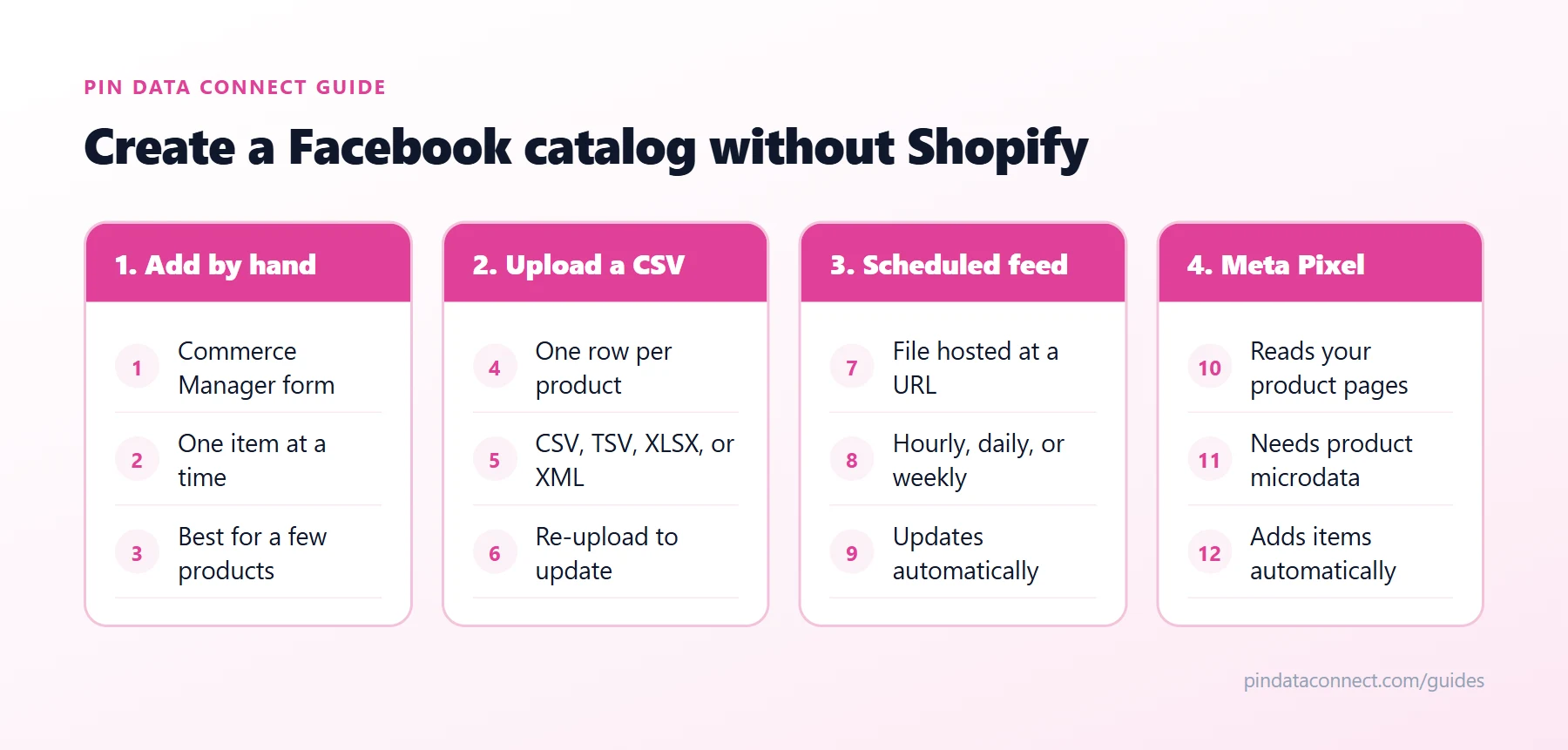
In Commerce Manager, create a catalog, choose E-commerce (online products) as the type, and pick how you'll add items. Those choices are the four options below.
Option 1: Add products by hand in Commerce Manager
Commerce Manager has a form for adding items one at a time. It's fine for a handful of products, but every price change and every sold-out item has to be edited by hand.
Option 2: Upload a Facebook catalog CSV
Build a spreadsheet with one row per product and one column per field, save it as a Facebook catalog CSV (or TSV, XLSX, or XML), and upload it as a data feed. This is the quickest way to add many products at once - but a one-time upload doesn't update itself. When something changes, you upload the file again. Our free Facebook Catalog CSV Template Generator gives you the right columns to start from.
Option 3: A scheduled Meta Commerce Manager data feed
Instead of uploading the file, host it at a URL and let Meta fetch it on a schedule - hourly, daily, or weekly. This is the best option for most shops without Shopify: change your product data once and every Facebook and Instagram surface picks it up on the next fetch. Scheduled Data Feeds in Commerce Manager walks through setting one up.
Option 4: Use your Meta Pixel
Commerce Manager can also add items automatically from the Meta Pixel on your website, using product details (microdata) on your product pages. It needs that structured product data on every page, so it works best on platforms that already output it.
The fields every product needs
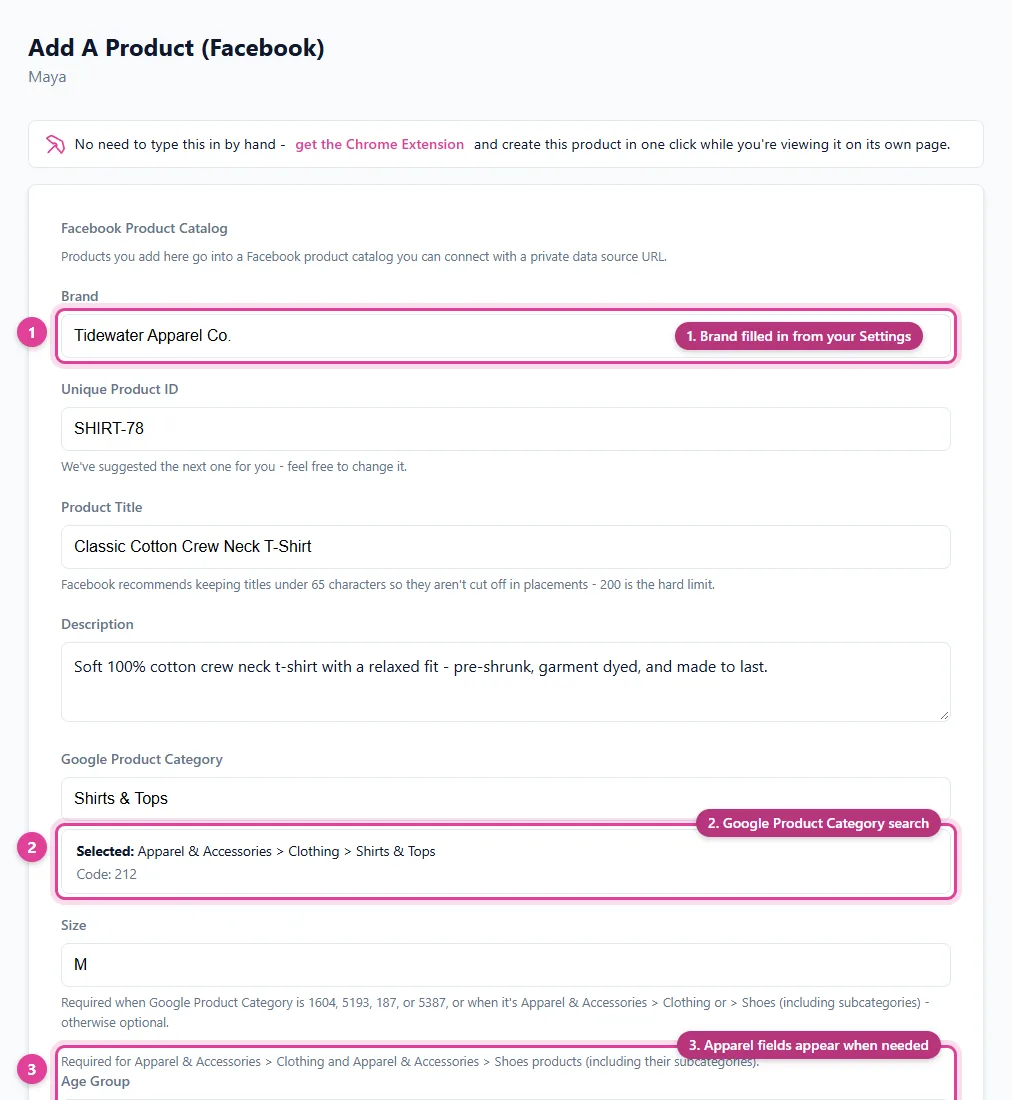
Whichever method you use, each product in a Facebook product catalog needs:
id- unique, up to 100 characters (your SKU is ideal)title- up to 200 characters; Meta recommends about 65 or fewerdescription- plain text, up to 9,999 charactersavailability-in stockorout of stockcondition-new,refurbished, orusedprice- a number and a currency code, such as9.99 USDlink- the product page, starting with http:// or https://image_link- a JPEG or PNG at least 500 x 500 pixels, up to 8 MBbrand- up to 100 characters
Clothing and some other categories also need details such as size, color, gender, and age_group to sell in Shops, and google_product_category helps Meta classify each item - our free Google Product Category Lookup tool finds the right one.
Which option should you use?
- A few products that rarely change: add them by hand.
- A one-off import: upload a Facebook catalog CSV.
- Prices or stock that change: use a scheduled data feed so Facebook stays in sync automatically.
If Commerce Manager reports problems after your first upload, Facebook Catalog Feed Errors, Fixed covers the common ones.
Frequently asked questions
Can I create a Facebook catalog without Shopify?
Yes. Meta Commerce Manager accepts products from any website: add them by hand, upload a product file, connect a scheduled data feed hosted at a URL, or add items with your Meta Pixel.
What is the easiest way to add products to a Facebook catalog?
For a few products, the manual form in Commerce Manager. For many products, a Facebook catalog CSV upload. For products whose prices or stock change, a scheduled data feed that Meta fetches automatically.
What fields does a Facebook product catalog need?
Every product needs id, title, description, availability, condition, price, link, image_link, and brand. Clothing and some other categories also need details like size, color, gender, and age group to sell in Shops.
Is a Facebook catalog free?
Yes. Creating a catalog in Commerce Manager is free. Running catalog ads is optional and paid.
Does a Facebook catalog also work for Instagram?
Yes. A catalog in Commerce Manager can power shopping features and catalog ads on both Facebook and Instagram.
Build your Facebook catalog in your browser
Pin Data Connect builds your Facebook product catalog without spreadsheets or Shopify and gives you a private feed URL for a scheduled Meta Commerce Manager data feed - or connects to your Facebook catalog directly.
See the Facebook Product Catalog Builder →
Save this guide for later
Pin it to one of your Pinterest boards so it's easy to find when you're ready to set things up.
Save to Pinterest