Guide · Facebook & Meta catalogs
Scheduled Data Feeds in Meta Commerce Manager
Uploading a Facebook catalog CSV gets your products into Commerce Manager once. A scheduled data feed keeps them there: you host your product file at a URL, and Meta fetches it on a schedule you choose and updates your Facebook product catalog to match.
Here's how a scheduled Meta Commerce Manager data feed works and how to set one up.
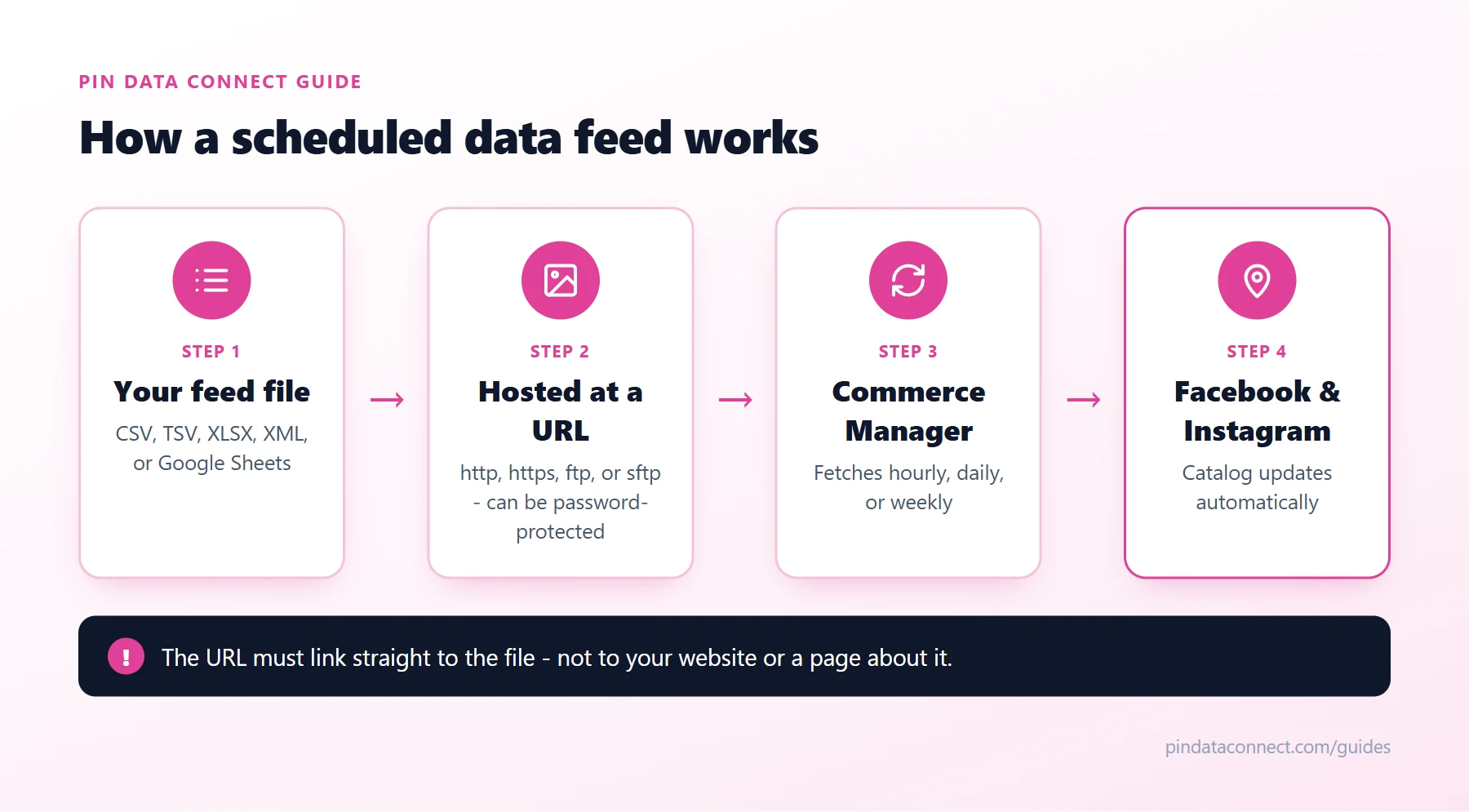
How scheduled feeds work
The diagram above shows the loop. Your product file lives at a URL. On each scheduled run, Meta downloads it, compares it with your catalog, and adds new items, updates changed ones, and handles items that are no longer in the file. Change a price or mark something out of stock in your file, and Facebook and Instagram reflect it after the next fetch - no re-uploading.
What the feed URL needs
- A direct link to the file - not to your website or a page that links to it. The URL must start with http://, https://, ftp://, or sftp://.
- A supported format: CSV, TSV, XLSX, XML (RSS or ATOM), or Google Sheets.
- A login, if the file is protected: Commerce Manager can store a username and password for password-protected feeds.
- A sensible size: up to 8 GB per file. Very large catalogs - more than about a million items - are better split into several feeds.
- Valid product data in the same fields as a Facebook catalog CSV: id, title, description, availability, condition, price, link, image_link, and brand.
How to set up a scheduled feed
- In Commerce Manager, open your catalog and go to Data sources.
- Add items using a data feed, and choose to use a URL rather than upload a file.
- Paste the feed URL. If it's protected, add the username and password.
- Choose a schedule - hourly, daily, or weekly - and a time.
- Set the currency if your prices don't include one, name the feed, and finish. Meta runs the first upload right away.
You can change the schedule, URL, or login later in the data source's settings, and start an upload manually whenever you want an immediate refresh.
Which schedule to choose
- Daily suits most shops: prices and stock stay current without unnecessary fetches.
- Hourly is worth it if stock changes fast - limited runs, flash sales, or one-of-a-kind items.
- Weekly works for catalogs that rarely change.
Check each upload
Every scheduled run shows up in the data source's upload history with the number of items added, updated, and removed, plus any errors. A sudden jump in errors usually means something changed in the file - a renamed column or a price format. Facebook Catalog Feed Errors, Fixed covers the common ones.
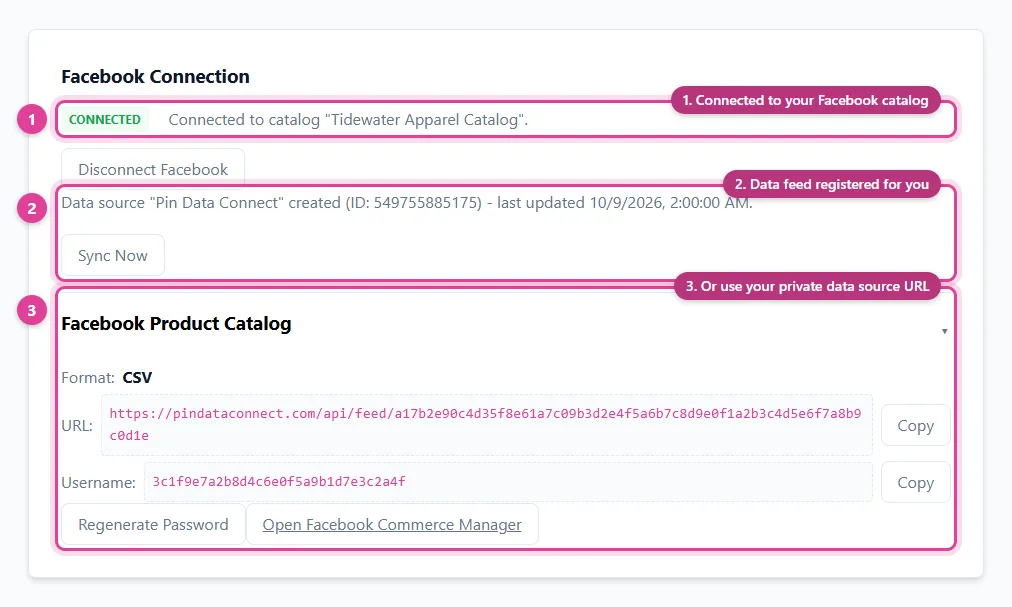
Where the feed file comes from
Any system that can produce an always-current product file at a stable URL works - a store platform's export, a plugin, or a catalog builder. For the full set of options, see the pillar guide, How to Create a Facebook Catalog Without Shopify.
Frequently asked questions
What is a scheduled data feed in Commerce Manager?
It is a product file hosted at a URL that Meta Commerce Manager fetches on a schedule you set, hourly, daily, or weekly, updating your catalog to match the file each time.
How often can Meta fetch my product feed?
You can schedule a data feed to update hourly, daily, or weekly, and you can also start an upload manually whenever you need an immediate refresh.
Can a Commerce Manager data feed be password protected?
Yes. When you add the feed URL you can enter the username and password Meta should use to download it.
What file formats can a scheduled data feed use?
CSV, TSV, XLSX, XML (RSS or ATOM), and Google Sheets.
Is there a size limit for a Facebook data feed?
Each feed file can be up to 8 GB. For catalogs with more than about a million items, splitting products across several feeds is recommended.
An always-current feed URL for Commerce Manager
Pin Data Connect hosts your Facebook product catalog at a private, password-protected feed URL that a scheduled Meta Commerce Manager data feed can fetch - or registers the data feed in your catalog for you when you connect your Facebook account.
See the Facebook Product Catalog Builder →
Save this guide for later
Pin it to one of your Pinterest boards so it's easy to find when you're ready to set things up.
Save to Pinterest