Product fields
Variants: colors and sizes (Enhanced catalogs)
On an Enhanced catalog, you can add every color and size of a product in one go. Each combination becomes its own product row, and they're grouped together so the platform shows them as one product with options.
Add variants
- Open Add A Product to Catalog on your Enhanced catalog and fill in the main fields as usual.
- Under Variants, tick Has Variants?
- Enter Color(s) and/or Size(s), separated by commas, such as
Red, BlueandSmall, Medium, Large. Each value can be up to 30 characters. - If you entered sizes, choose a Size Type (Regular, Petite, Plus, Big and Tall, or Maternity). Size System, such as US or UK, is optional.
- Check the preview, for example "This will create 6 product rows.", then save.
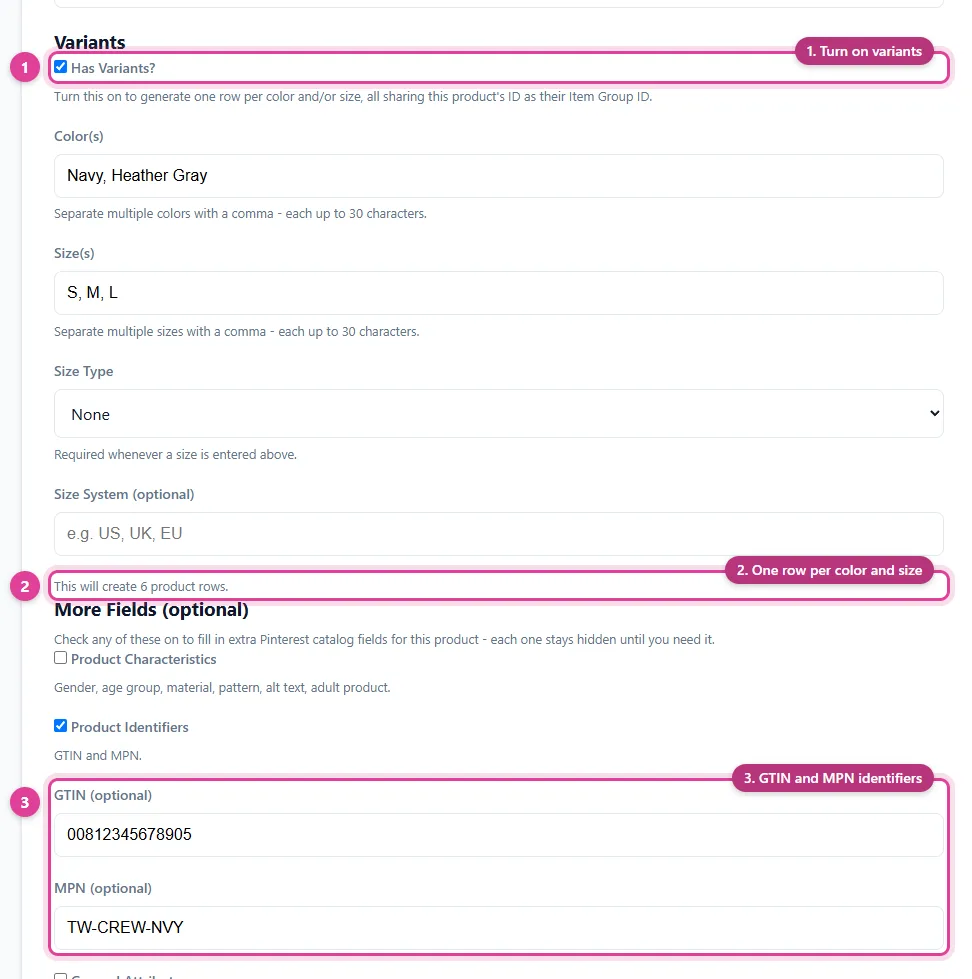
How variants are built
- With colors and sizes, you get every combination: 2 colors and 3 sizes make 6 rows.
- With only colors, or only sizes, you get one row per value.
- Each row's ID adds its color and size to your product ID, such as
tee01-red-small. - Your product ID becomes the Item Group ID shared by every row, which is how platforms know they belong together.
Editing variants later
Each variant is its own row in Manage Product Catalog, so you can change one variant's price or availability without touching the others. Use Bulk Edit to change them all together.
Which plans have variants
Variants come with the Enhanced catalogs (Pinterest, Facebook, Google, and Bing Enhanced), Pixels Enhanced plans, and WooCommerce stores connected with the Store Product Catalog Connector. See Basic vs Enhanced catalogs.
Still need help?
Chat with us using the chat button in the corner of this page, or send us a message and we'll reply by email.
Contact Us