Adding & managing products
Edit, find, and delete products
Every product in a catalog is listed on its Manage Product Catalog page. Open it from the sidebar, under your catalog.
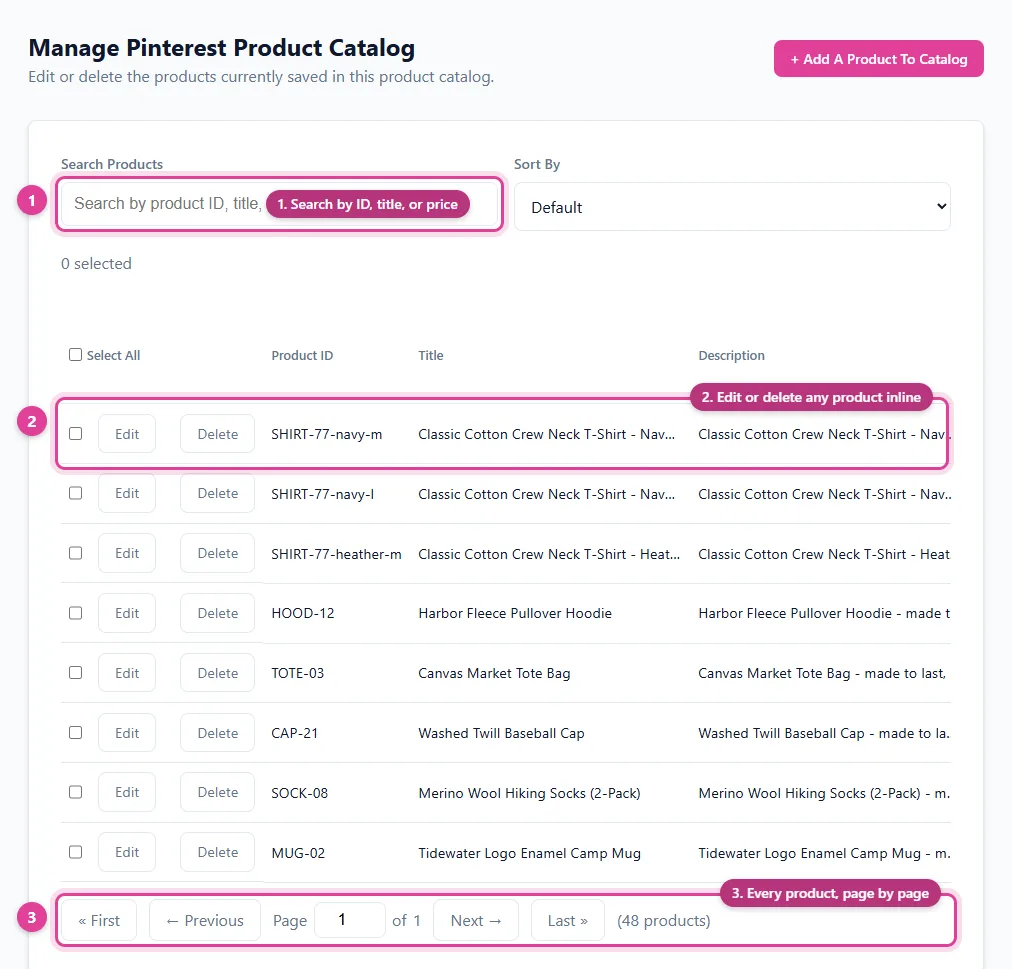
Find a product
- Type in Search Products to filter by product ID, title, price, or sale price.
- Use Sort By to change the order.
- Use the page buttons at the bottom to move through a large catalog.
Edit a product
Click Edit on the product's row, change the fields, and click Save. Your changes are checked the same way as on the Add Product form.
Edit many products at once
- Tick the box on each product you want to change, or select them all.
- Click Bulk Edit, tick the fields to change, enter the new values, and apply.
Bulk Edit covers price, sale price, availability, brand, condition, and custom label 0 (whichever your catalog has). It's the quickest way to run a sale or mark a range out of stock.
Delete products
Click Delete on a product's row and confirm, or tick several products and click Delete Selected. Deleting can't be undone. The products leave your catalog straight away, and the platform removes them on its next read.
When changes show up on the platform
Your Data Source URL always serves your latest catalog. Each platform reads it on its own schedule, usually about once a day. To send changes sooner on Pinterest, Facebook, or Google, use Sync Now.
Still need help?
Chat with us using the chat button in the corner of this page, or send us a message and we'll reply by email.
Contact Us