Adding & managing products
Add a product to your catalog
Each product you add becomes one row in your catalog, and each catalog you subscribe to has its own Add Product form with the fields that platform needs.
Open the form
- In the sidebar, find your catalog (for example Pinterest Product Catalog).
- Click Add A Product to Catalog. With a combined plan (such as Pinterest + Facebook), one form fills every catalog in the plan at once.
- Fill in the fields and save. Optional fields are marked (optional).
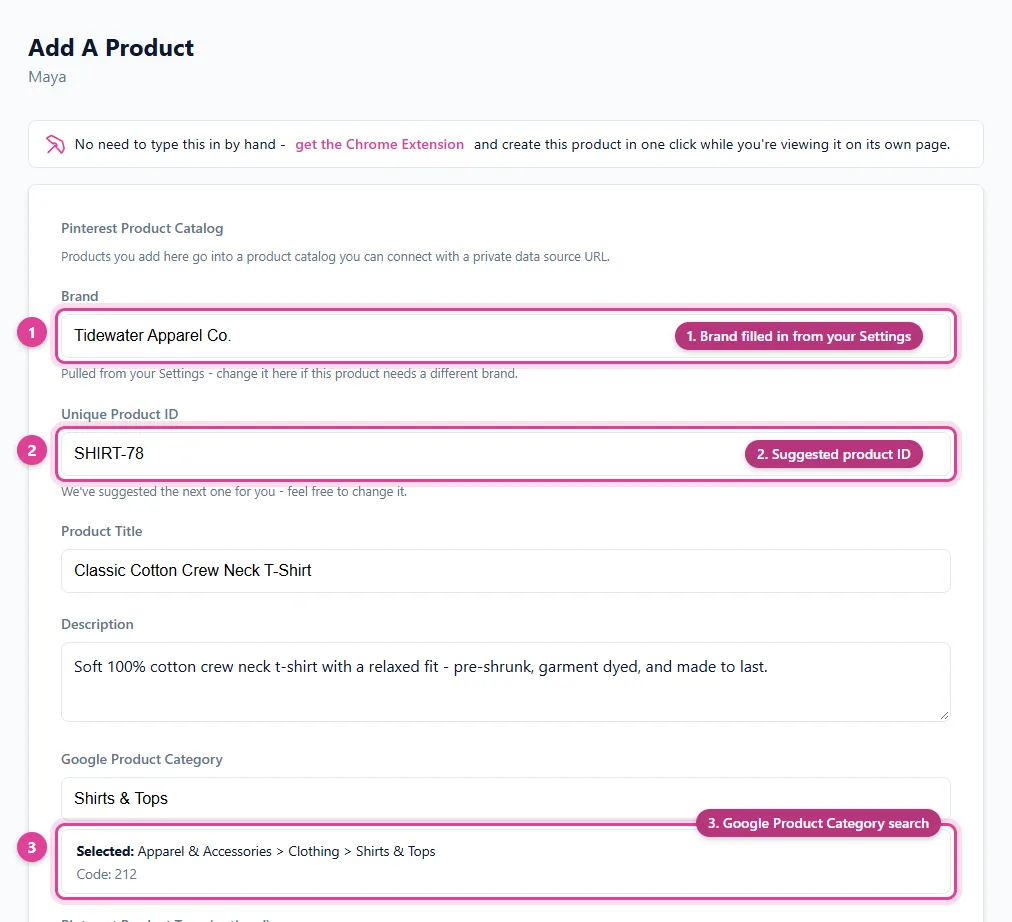
The required fields
- Unique Product ID: your own ID for this product, such as its SKU. It must be different for every product. The form suggests the next free ID for you.
- Product Title and Description: what shoppers see. Use the words people search for.
- Product URL: the product's page on your website, where shoppers can buy it.
- Image Link: a direct link to the product image (it should open the image itself, not a web page).
- Price: just the number, such as
24.99. Your currency from Settings is added for you. - Availability and Condition: for example in stock, new.
- Brand: pre-filled from Settings.
- Google Product Category: the category that best describes the product. See Choosing a Google Product Category.
The exact list depends on the platform and plan. Enhanced catalogs add fields such as color, size, GTIN, MPN, extra images, sale price, and custom labels.
Colors and sizes (Enhanced catalogs)
On an Enhanced catalog, enter every color and size the product comes in. Each combination becomes its own variant, grouped under one product so the platform shows them together. See Variants: colors and sizes.
After you save
The product is in your catalog straight away, and your Data Source URL includes it immediately. The platform picks it up on its next read, usually within a day. To push it sooner on Pinterest, Facebook, or Google, use Sync Now.
Still need help?
Chat with us using the chat button in the corner of this page, or send us a message and we'll reply by email.
Contact Us