WooCommerce, PrestaShop, Wix, Square, Squarespace, BigCommerce & Webflow store connector
Connect any store with a product feed
If your store isn't one we connect to directly, you can still use the Store Product Catalog Connector: most store platforms and feed plugins can make a product feed, a file listing your products at a web address. Paste that address in, and we build your Pinterest, Facebook, Google, and Bing catalogs from it.
1. Find your feed's URL
- Webflow: Site settings, Ecommerce, Integrations: turn on the Google feed and copy its URL. (Webflow can also connect directly.)
- OpenCart, osCommerce, Ecwid, Shopify, and others: a Google Shopping or Facebook feed from your platform's own settings or a feed app or extension. Copy the feed's URL from its settings.
- A spreadsheet: a Google Sheet with one product per row and column names in the first row, shared as Anyone with the link can view. Paste the sheet's link.
XML (Google's RSS and Atom formats, or any other with one element per product), CSV, tab-separated, and JSON feeds all work, up to 50 MB.
yourstore.wixsite.com or yourstore.webflow.io) can't be.2. Check and connect it
- Open Connections, choose the Source tab, and choose Product feed (any store).
- Paste the feed URL. If your feed asks for a username and password, add them under My feed needs a login.
- Click Check Feed. We read the feed and show how many products we found, where their links point, and their currency.
- Most feeds use the standard column names, so the columns match on their own. If any we need don't match - product ID, title, product link, image link, or price - pick the right column for each.
- Click Connect Feed. Your first sync starts right away.
3. How updates work
We read your feed once a day, and whenever you click Sync Now. Only products that changed are updated, and products that are no longer in your feed are removed from your catalogs. Your catalogs are only as current as your feed, so check how often your platform or plugin refreshes it.
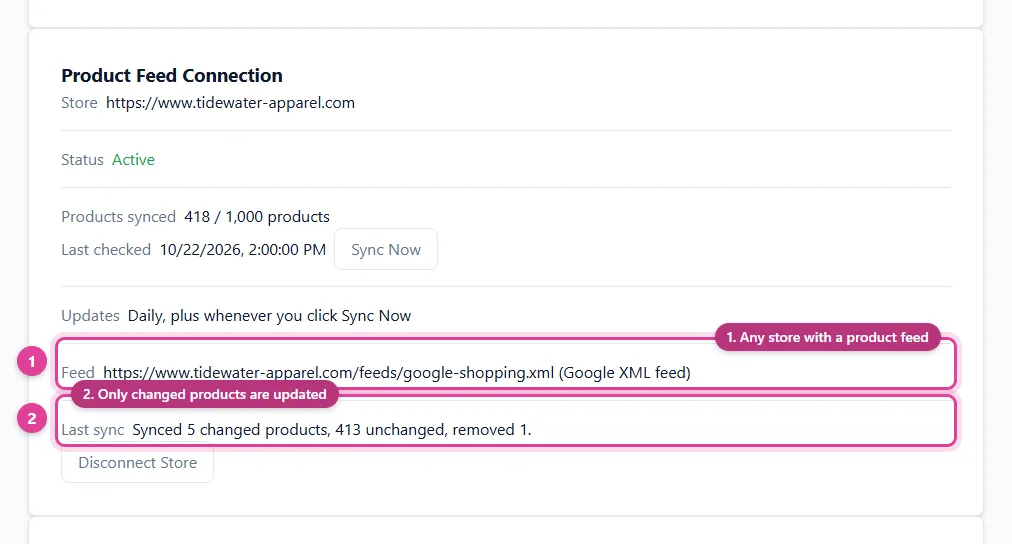
If your feed suddenly has fewer than half as many products as you have synced, we don't remove the missing ones - a feed that broke or was only half written would otherwise empty your catalogs. The card says how many are missing; if they're really gone, click Remove them.
4. Categories
Products with a google_product_category in your feed (a category ID or its full path) are categorized automatically. For the rest, each product_type value in your feed appears under Needs Mapping after your first sync - map the ones that say what a product is. See Category mapping and sync settings.
Good to know
- Rows that share an
item_group_idare variants of one product.color,size,gender, andage_groupcome across when your feed has them; for clothing without them, see Clothing details. - Each product uses your feed's
brand; products without one use the brand in your Settings. - Prices use your feed's currency. Rows priced in a different currency, rows without a price, and rows whose links aren't full web addresses are skipped, and Last sync says how many and why.
- Already sending this same feed to Google or Facebook yourself? Send each platform one source - either your own feed or ours - or you'll have every product twice.
- To change the feed's address, its login, or how its columns are matched, use Feed URL on the same page. A different store's feed means disconnecting and connecting again.
Using your Google Shopping feed? See How to Use Your Google Shopping Feed for a Pinterest Catalog and How to Use One Product Feed for Every Catalog.
Still need help?
Chat with us using the chat button in the corner of this page, or send us a message and we'll reply by email.
Contact Us