WooCommerce, PrestaShop, Wix, Square, Squarespace, BigCommerce & Webflow store connector
Connect your Webflow store
1. Create a site API token in Webflow
- In Webflow, open your store site's Site settings, choose Apps & integrations, and scroll to API access.
- Click Generate API token and name it Pin Data Connect.
- Set E-commerce and CMS to Read-only, and Sites to Read and write. Webflow only lets apps set up the notifications we use for automatic updates with write access to Sites. Leave everything else at No access.
- Click Generate token and copy it. Webflow shows it only once.
webflow.io address can't be. Connect a custom domain in Webflow first.2. Connect it
- Open Connections, choose the Source tab, and choose Webflow.
- Paste the token and click Connect Store. You don't need to enter your store's address: we read it from Webflow.
- We check the token, turn on automatic updates, and start your first sync.
3. Changes sync automatically
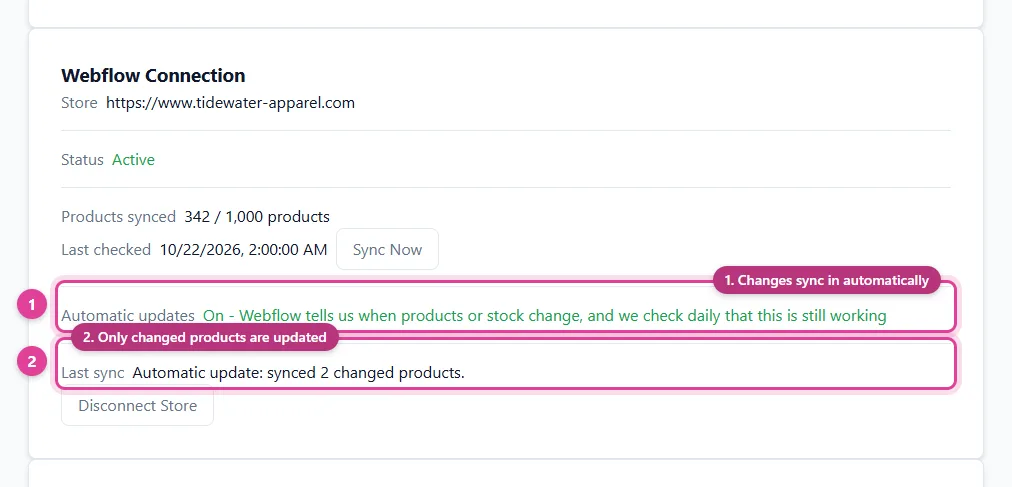
When you change a product or its stock in Webflow, your site tells Pin Data Connect, and just that product is updated a few moments later. We also check every day that automatic updates are still working: if Webflow has switched one off, we turn it back on and re-check all your products, so nothing missed in between is lost. Last sync on the Webflow Connection card shows what changed, and Automatic updates shows whether they're on.
Big stores take a little longer to sync in full: Webflow limits how many requests apps can make each minute, and each product option's stock is a separate request. You can click Sync Now at any time.
4. Map your Webflow categories
After your first sync, your Webflow categories appear under Needs Mapping. Map the ones that say what a product is to a Google product category. Categories like "Sale" can be left unmapped: if a product is in several, the first one that's mapped is used. See Category mapping and sync settings.
Good to know
- Products with options sync as one listing per option combination, grouped under the product. Options named Color (or Colour) and Size are used as the color and size.
- Only published products are listed. Drafts, archived products, digital products, and services are left out.
- A compare-at price above the price is sent as the regular price, with your price as the sale price.
- Webflow has no brand field, so products use the brand in your Settings, or your site's name if that's empty. It has no gender or age group fields either; see Clothing details.
- Deleted the token, or need one with different access? Create a new one and paste it under Webflow API Token.
- Disconnect Store removes our automatic updates from your site. To fully remove access, also delete the token in your Webflow site settings.
Field-by-field details are in our guide to Webflow to Pinterest.
Still need help?
Chat with us using the chat button in the corner of this page, or send us a message and we'll reply by email.
Contact Us