WooCommerce, PrestaShop & Wix store connector
Connect your Wix store
wixsite.com address, and Pinterest and Google need product links on a domain you can verify. Connect a custom domain to your Wix site first.1. Find your Site ID
- Open your site's dashboard in Wix.
- Look at the address bar. The Site ID is the long ID right after
/dashboard/, such as1a2b3c4d-1234-5678-9abc-1234567890ab. You can also paste the whole address into Pin Data Connect and it picks the ID out.
2. Create an API key
- Go to manage.wix.com/account/api-keys (you need to be the site's owner or a co-owner) and click Generate API Key.
- Give it a name, such as "Pin Data Connect".
- Under permissions, give it read access to Wix Stores (products) and Categories.
- Under site access, choose the site your store is on.
- Generate the key and copy it. Wix only shows it once.
3. Connect it
- Open Connections, choose the Source tab, and choose Wix.
- Enter your site's address as the Store URL, then your Site ID and API Key, and click Connect Store.
- Pin Data Connect checks the details with Wix before connecting. If something's wrong, such as a missing permission, it tells you what to fix.
4. Sync your products
Wix doesn't send updates to outside apps connected this way, so you choose when to sync. Click Sync Now on the Wix Connection card whenever you've added, changed, or deleted products. The sync runs in the background, so a large store can take a few minutes; you can leave the page and come back. When it finishes, Last sync shows what happened, such as how many products changed and were removed.
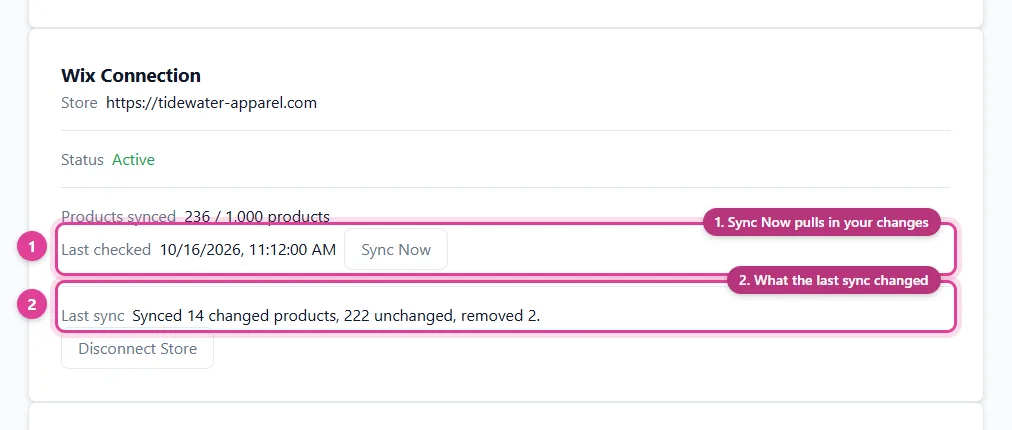
Each sync checks your whole store but only updates products that actually changed, including stock and price changes. Hidden products are left out, and a product you hide or delete in Wix is removed from your catalogs on the next sync.
5. Map your Wix categories
After your first sync, your Wix categories (or collections, on older Wix stores) appear under Needs Mapping. Map the ones that say what a product is, such as "Mugs" or "T-Shirts", to a Google product category. Categories like "Sale" or "New" can be left unmapped: if a product is in several, the first one that's mapped is used. See Category mapping and sync settings.
Good to know
- Products with options (colors, sizes) sync as one listing per variant, grouped under the product.
- Brand comes from the product's Wix brand, or from your Pin Data Connect Settings if it has none.
- Prices use your Wix store's currency.
- Wix has no gender or age group fields, which Facebook and Google require for clothing and shoes. Set them (and color and size, if a product has no such options) by product name: see Clothing details.
- Replaced your key or moved your store? Enter the new details under Wix API Credentials and click Save.
Field-by-field details are in our guide to Wix to Pinterest.
Still need help?
Chat with us using the chat button in the corner of this page, or send us a message and we'll reply by email.
Contact Us