WooCommerce & PrestaShop store connector
Category mapping and sync settings
Pinterest, Facebook, and Google need a Google product category on every product. Your store doesn't have one, so you map each of your product types to a category once. Bing doesn't need this.
1. Sync settings
On the Source tab, under Sync Settings:
- Category Attribute Name: the exact name of the WooCommerce product attribute (or PrestaShop product Feature) that says what each product is, such as "Type" or "Style". Don't use a variant attribute like Size or Color. Left blank on WooCommerce, the product's first category name is used instead, which is usually less accurate.
- Default Shipping Cost: a flat shipping cost applied to every product on Bing, which needs one. Use
0for free shipping.
Click Save Settings.
2. Map your product types
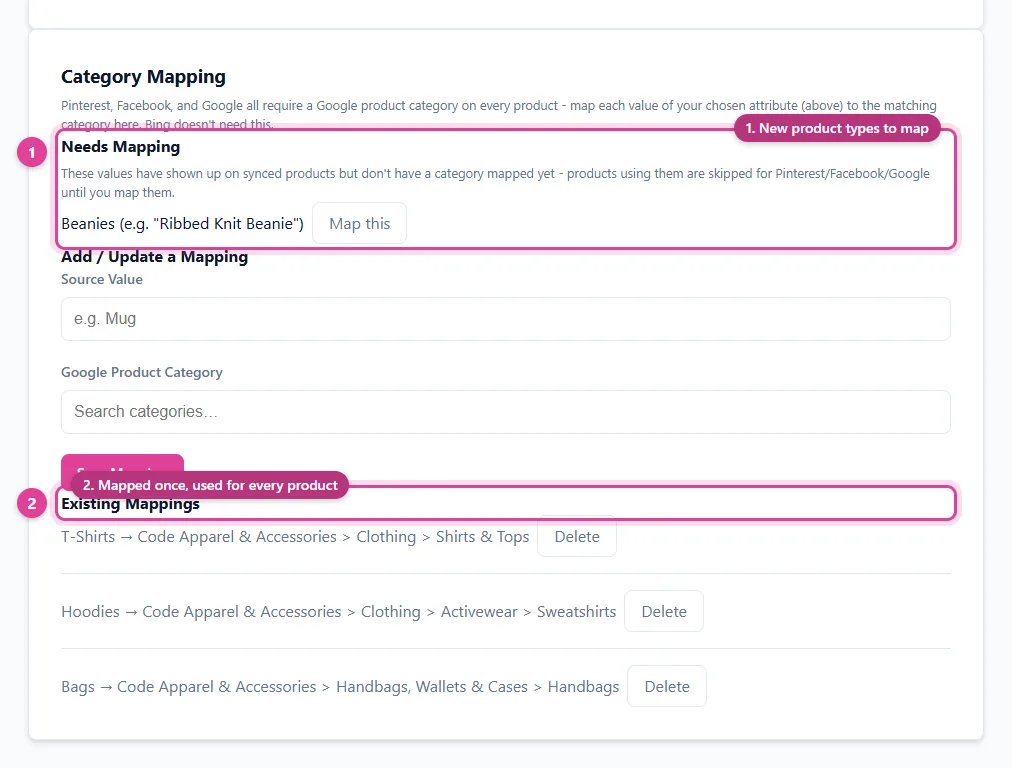
- Under Category Mapping, check Needs Mapping. It lists every product type value seen on synced products that has no category yet.
- Click Map this next to a value. It fills in the Source Value under Add / Update a Mapping (you can also type one, such as
Mug). - Search for the matching Google Product Category and click Save Mapping.
- Repeat for each value. Your mappings are listed under Existing Mappings.
Unmapped products are skipped. Until its type is mapped, a product is left out of your Pinterest, Facebook, and Google catalogs (it still reaches Bing). Check Needs Mapping whenever you add a new kind of product to your store.
Not sure which category fits? Use the free Google Product Category lookup.
Still need help?
Chat with us using the chat button in the corner of this page, or send us a message and we'll reply by email.
Contact Us