WooCommerce, PrestaShop, Wix, Square, Squarespace, BigCommerce & Webflow store connector
Connect your BigCommerce store
1. Create a read-only API account in BigCommerce
- In your BigCommerce control panel, go to Settings > Store-level API accounts and click Create API account.
- Name it Pin Data Connect.
- Under OAuth scopes, set Products and Information & settings to Read-only. Leave everything else at None.
- Click Save. BigCommerce shows the account's details once and also downloads them as a text file. Keep that file somewhere safe.
2. Connect it
- Open Connections, choose the Source tab, and choose BigCommerce.
- Paste the API Path (the address that starts with api.bigcommerce.com/stores/), the Access Token, and the Client Secret. You don't need the Client ID.
- Leave Store URL blank: we read your store's address from BigCommerce. Fill it in only if shoppers buy on a different site, such as a headless storefront.
- Click Connect Store. We check the details with BigCommerce, turn on automatic updates, and start your first sync.
3. Changes sync automatically
When you add, change, or delete a product, a price, or a stock level in BigCommerce, your store tells Pin Data Connect, and just that product is updated a few moments later. Last sync on the BigCommerce Connection card shows what changed, and Automatic updates shows whether they're on.
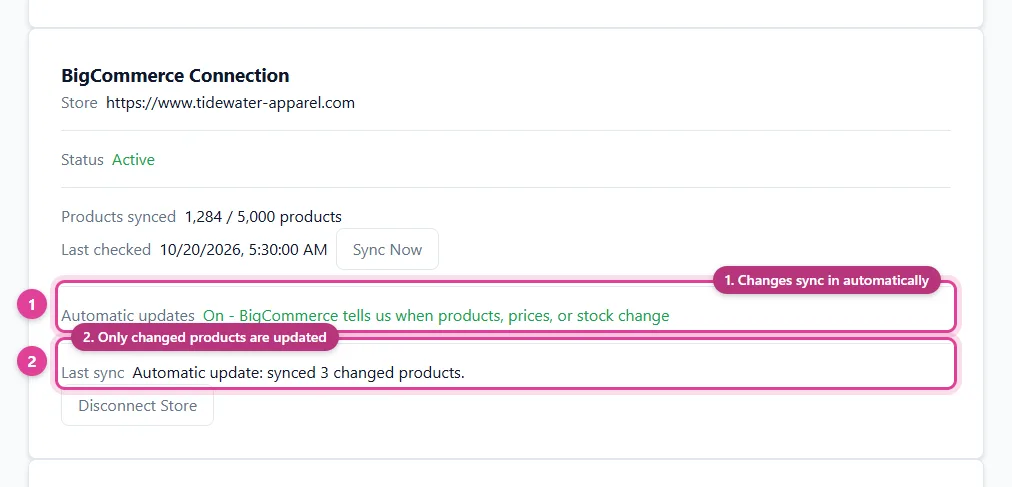
BigCommerce switches automatic updates off on its own after a long stretch with no changes. Pin Data Connect checks for this and turns them back on. You can also click Sync Now at any time: it re-checks your whole store and turns automatic updates back on if needed.
4. Map your BigCommerce categories
After your first sync, your categories appear under Needs Mapping as full paths, such as "Men > Shirts" and "Women > Shirts", so categories with the same name stay separate. Map the ones that say what a product is to a Google product category. Categories like "Sale" can be left unmapped: if a product is in several, the first one that's mapped is used. See Category mapping and sync settings.
Good to know
- Products with options sync as one listing per variant, grouped under the product. Options named Color (or Colour) and Size are used as the color and size. Variants with purchasing turned off are left out.
- Hidden products, digital products, products with purchasing disabled, and products with their price hidden aren't listed.
- Brand, condition, GTIN or UPC, and MPN come straight from BigCommerce. A product with no brand uses the one in your Settings.
- BigCommerce has no gender or age group fields. Add Gender and Age Group custom fields to a product, or set them by product name. See Clothing details.
- Prices use your store's default currency and are sent exactly as entered. If your store enters prices with tax included, US listings on Google expect prices without tax.
- Deleted the API account, or need one with different permissions? Create a new one and paste its access token and client secret under BigCommerce API Account.
- Disconnect Store removes our automatic updates from your store. To fully remove access, also delete the Pin Data Connect API account in BigCommerce.
Field-by-field details are in our guide to BigCommerce to Pinterest.
Still need help?
Chat with us using the chat button in the corner of this page, or send us a message and we'll reply by email.
Contact Us