Connecting Pinterest, Facebook, Google & Bing
Connect your catalog to Google Merchant Center
Before you start
- Have a Google Merchant Center account with your website verified and claimed.
- Set your country and currency in Settings.
- Have at least 5 products in your catalog. An empty feed fails to load.
- Find your Merchant Center account ID: the number shown at the top of your Merchant Center dashboard.
Connect automatically (recommended)
- Open Connections and find Google Connection.
- Click Connect with Google and sign in with a Google account that has access to your Merchant Center account. Allow access.
- Back on Connections, enter your Merchant Center account ID and click Confirm Account. You'll see "Merchant Center account confirmed."
- Click Create Data Source. Pin Data Connect adds a product data source named "Pin Data Connect", set to fetch your catalog daily.
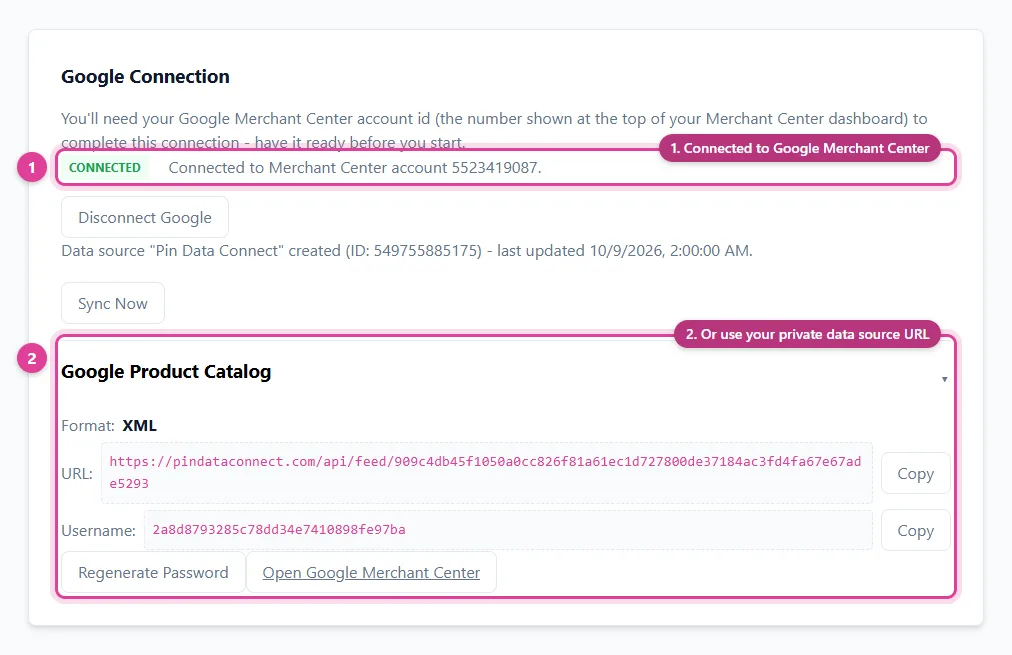
Connect manually with your Data Source URL
- Get your URL, username, and password. See Your Data Source URL. Google's format is XML.
- In Merchant Center, add a product source and choose to add products from a file, using a link to a file (a scheduled fetch).
- Paste the URL. Choose to add authentication information and enter the username and password.
- Set a daily fetch, pick your country and language, and save.
- On your Pin Data Connect dashboard, click confirm you've connected it.
After you connect
- Google reviews new products before they show, which can take a few days.
- To fetch changes before the next daily fetch, click Sync Now. See Sync Now and update timing.
- To stop, click Disconnect Google. You can reconnect any time.
Still need help?
Chat with us using the chat button in the corner of this page, or send us a message and we'll reply by email.
Contact Us