Connecting Pinterest, Facebook, Google & Bing
Your Data Source URL: what it is and how to use it
Your Data Source URL is a private link to your catalog file. Platforms download it on a schedule, so it always serves your latest products. It's protected by a username and password, so only the platforms you give them to can read it.
Find your Data Source URL
- Open Connections from the sidebar.
- Find the platform's card, such as Pinterest Connection. You get one Data Source URL per platform.
- The first time, click Generate Data Source URL.
- Copy the password shown straight away. It's shown only once.
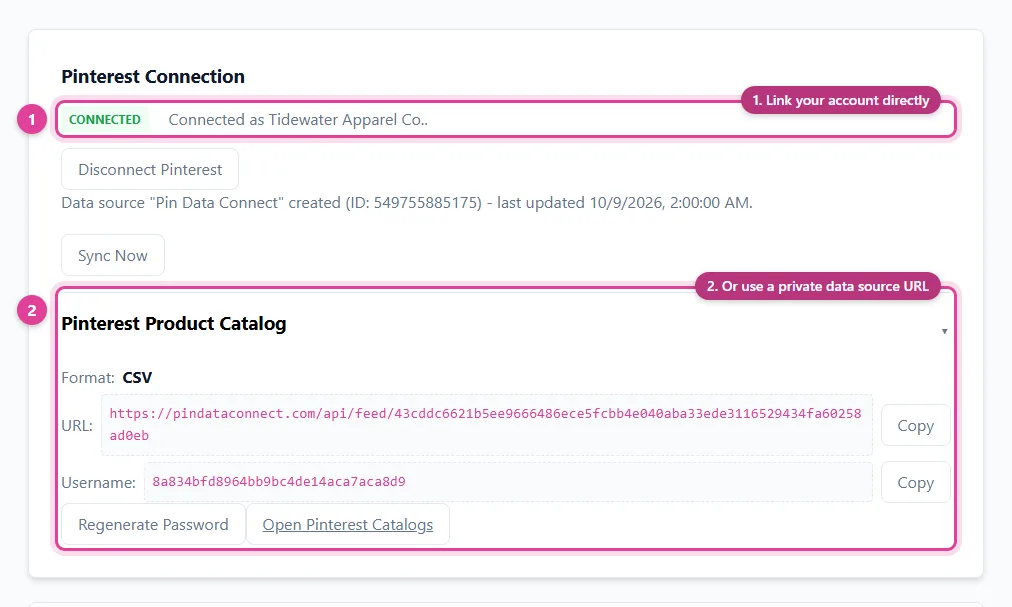
The card shows the Format (CSV for Pinterest, Facebook, and Bing; XML for Google), the URL, and the Username, each with a Copy button, plus a button that opens the platform.
Paste it into a platform
On the platform, add a new scheduled data feed or data source, paste the URL, and enter the username and password when it asks for login details. Set it to fetch daily. Step-by-step:
For Pinterest, Facebook, and Google, the automatic connection is easier: it creates the data source and enters the login details for you.
Lost the password? Regenerate it
- On the platform's card in Connections, click Regenerate Password and confirm.
- Copy the new password. The old one stops working immediately; the URL and username stay the same.
- If the platform is connected automatically, the new password is sent there for you. If you pasted the URL in yourself, update the password on the platform too, or its next fetch will fail.
Good to know
- Your plan decides what the URL serves. If you upgrade, for example from a Pinterest catalog to Pinterest Enhanced, the same URL serves the richer catalog from the next fetch. There's nothing to reconnect.
- If your subscription for that platform ends, the URL stops serving your catalog.
- Keep the password private, like any login.
Still need help?
Chat with us using the chat button in the corner of this page, or send us a message and we'll reply by email.
Contact Us