Connecting Pinterest, Facebook, Google & Bing
Connect your catalog to Bing (Microsoft Merchant Center)
Bing connects with your Data Source URL: you paste it into Microsoft Merchant Center once, and Microsoft downloads your catalog on a schedule. There's no automatic connection for Bing.
Before you start
- Have a Microsoft Merchant Center store, with your website verified, in your Microsoft Advertising account.
- Set your country and currency in Settings.
- Have at least 5 products in your catalog.
Connect Bing
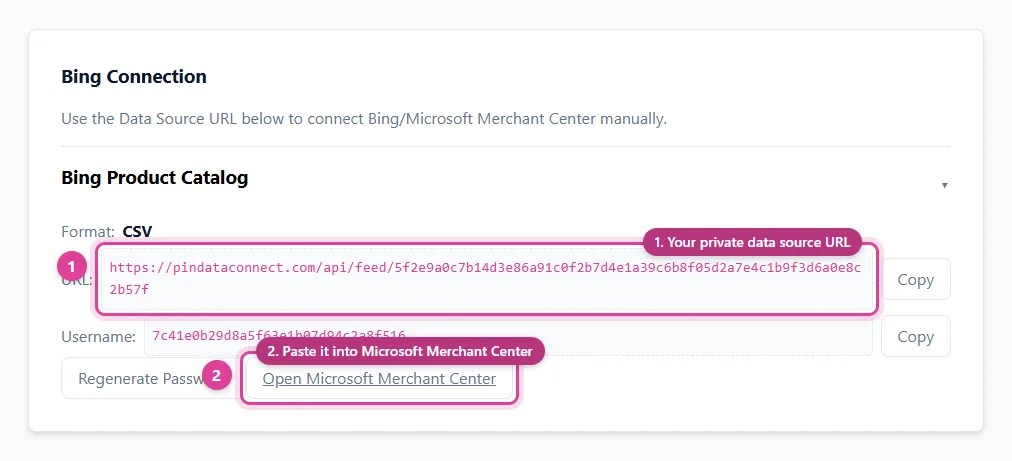
- Open Connections and find Bing Connection.
- Click Generate Data Source URL if you haven't yet, and copy the password shown (it's shown once). Copy the URL and username too.
- Click Open Microsoft Merchant Center, open your store, and create a new feed.
- Choose a scheduled file download, paste the URL, and enter the username and password.
- Set it to download daily and save.
- On your Pin Data Connect dashboard, click confirm you've connected it.
After you connect
- Microsoft downloads your catalog on the schedule you set, then reviews new products.
- If you regenerate your password, update it in Microsoft Merchant Center too.
Still need help?
Chat with us using the chat button in the corner of this page, or send us a message and we'll reply by email.
Contact Us