Guide · Pinterest catalogs
How to Find Which Products Pinterest Rejected
Your catalog says it has 400 products, but Pinterest only shows 380 Product Pins. The missing 20 aren't lost - Pinterest read them and decided not to add them, and it tells you why, if you know where to look.
This guide shows where Pinterest lists those products, how to read and export the list, and how to keep watching it without logging in to Pinterest every day.
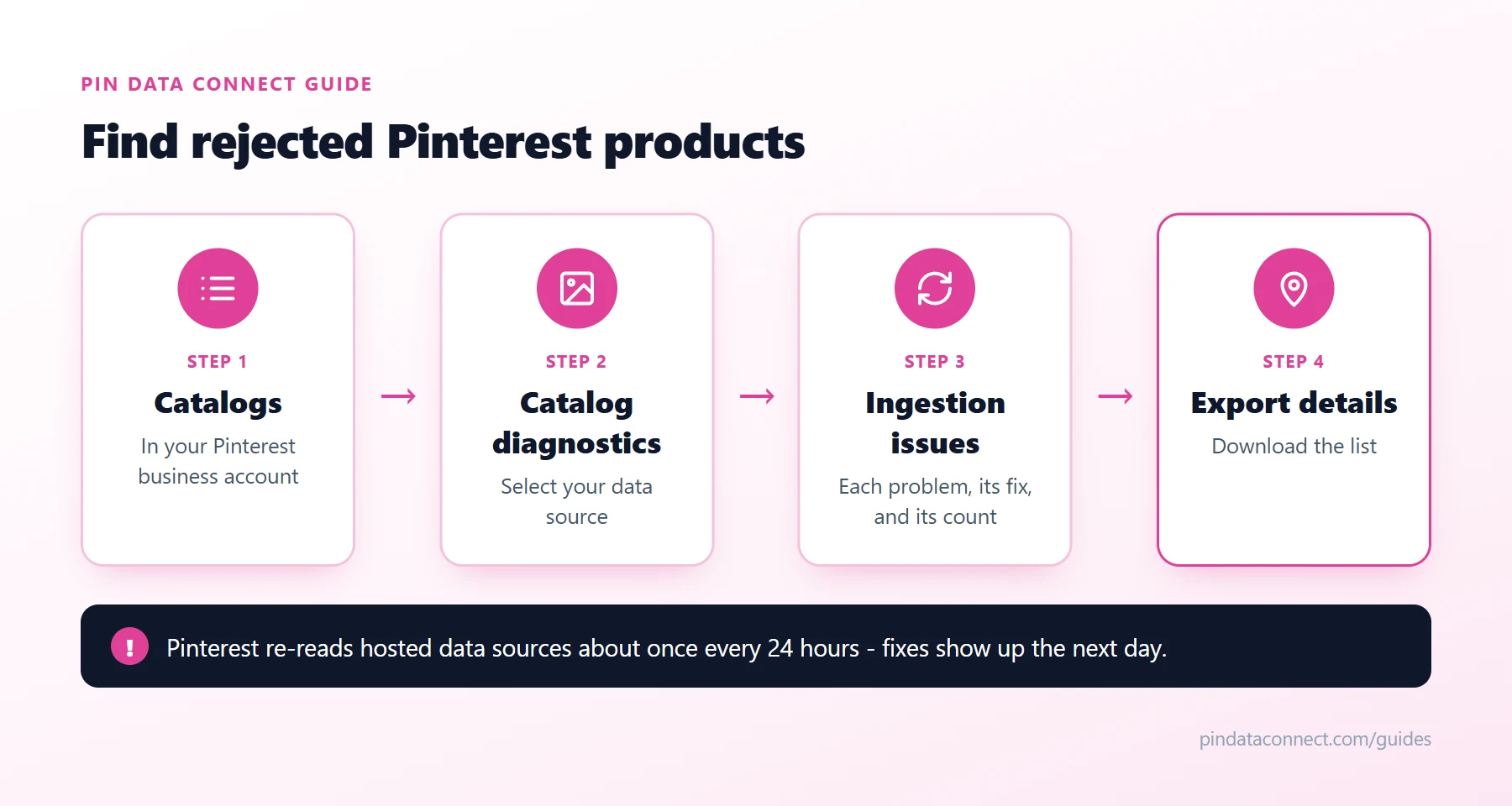
Where Pinterest lists rejected products
- In your Pinterest business account, open Catalogs and go to Catalog diagnostics.
- Select your data source.
- Open the Ingestion issues tab. Each issue has a description, how to fix it, and how many products it affects.
- Click Export details to download the list.
Pinterest re-reads a hosted data source about once every 24 hours, so a fix shows up after the next daily read.
Reading the issues
- Errors stop a product from being added - a missing description or image link, a missing price, or two products with the same ID.
- Warnings leave the product live but can limit it - an invalid GTIN, a title that's too long, an unrecognized category.
- File-level notes are about the feed, not your products - "nothing changed since the last update", or a warning that the product count changed a lot. A big drop in product count is worth checking: it can mean your feed lost products by mistake.
- A gap with no reason. Sometimes the number of products Pinterest added is a little lower than the number it read, with no error listed. Pinterest's own diagnostics page is the only place it may say more.
For each error and how to fix it, see How to Fix Pinterest Catalog Errors.
See it without logging in to Pinterest
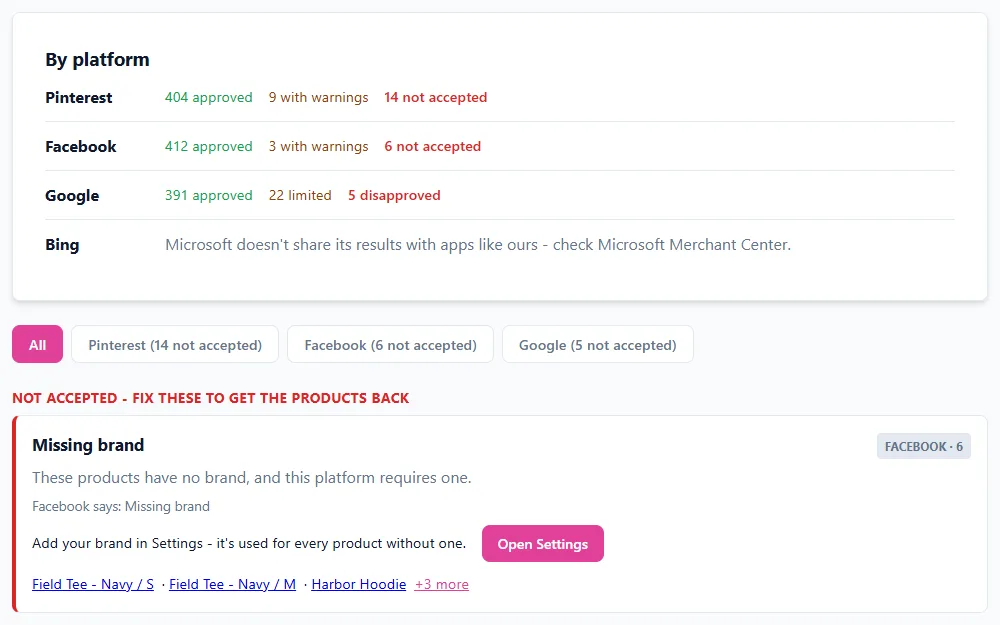
If your catalog's data source was set up through Pin Data Connect's Connect button, Catalog Health reads Pinterest's results every morning and shows them next to Facebook's and Google's: how many products were added, which problems Pinterest found, in plain English, and a button that opens the place to fix each one. Pinterest only shares up to 20 example products for each problem, so the counts are complete but the product lists may not be.
A two-minute weekly check
- Compare products read with products added. A growing gap means something new is being rejected.
- Fix errors before warnings - errors keep products off Pinterest entirely.
- Fix the product at the source (your catalog or store), not in Pinterest, so the next read doesn't bring the problem back.
Frequently asked questions
Where can I see which products Pinterest rejected?
In your Pinterest business account, open Catalogs, then Catalog diagnostics, select your data source, and open the Ingestion issues tab. Each issue shows how many products it affects and how to fix it, and Export details downloads the list.
Why does Pinterest show fewer Product Pins than products in my catalog?
Pinterest leaves out products with errors, such as a missing price, image link, or description, or a duplicate ID. The Ingestion issues tab lists them. Occasionally a small number are left out with no reason listed.
How long until a fix shows up on Pinterest?
Pinterest re-reads a hosted data source about once every 24 hours, so a fix usually appears after the next daily read.
What is the difference between an error and a warning?
An error keeps the product out of your catalog. A warning leaves the product live but can limit how well it performs, for example an invalid GTIN or an over-long title.
A Pinterest catalog that tells you what went wrong
Pin Data Connect's Pinterest Product Catalog Builder builds your catalog in your browser, connects it to Pinterest for you, and shows what Pinterest accepted and rejected - with the fix for each problem - on its Catalog Health page.
See the Pinterest Product Catalog Builder →
Save this guide for later
Pin it to one of your Pinterest boards so it's easy to find when you're ready to set things up.
Save to Pinterest