Guide · Print on demand & any website
How to Add Products From Any Website to a Facebook Catalog
A Facebook catalog is what puts your products into Facebook and Instagram shopping features and Meta's catalog ads. Big store platforms connect with an app, but any e-commerce website can add products to a Facebook catalog - all Meta needs is your product data in the right format.
This guide shows where to find every field on your own product pages, how to build a Facebook product feed, and how to keep it in sync.
Before you start
- A Meta business portfolio and access to Commerce Manager.
- A product page per item on your website.
- Your domain verified with Meta (in your business settings). Meta uses it for ads and event tracking, so it's worth doing up front.
Find every field on your product page
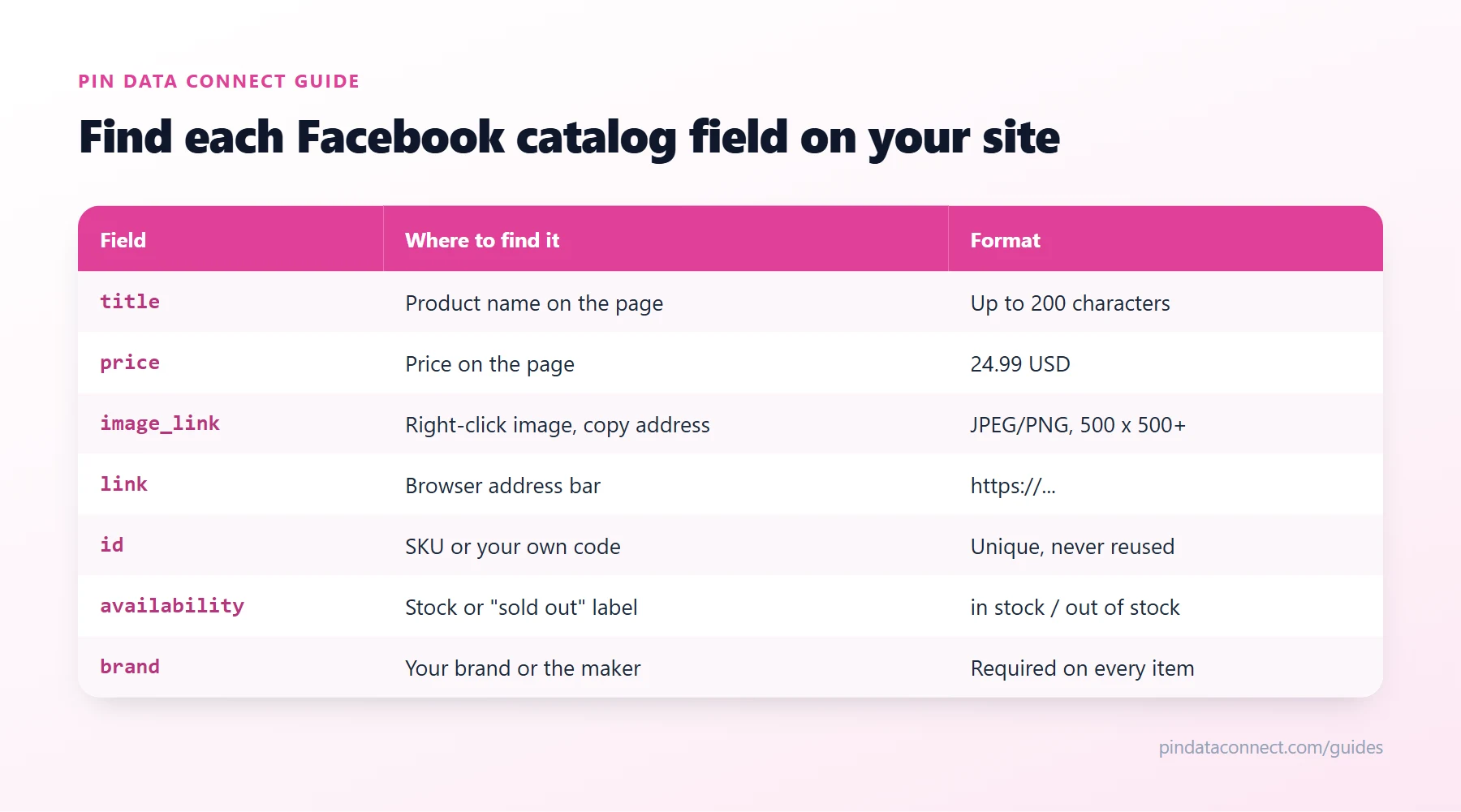
The table above maps each required Facebook catalog field to where you'll find it on your own website. Nine fields are required for every product: id, title, description, availability, condition, price, link, image_link, and brand. A few rules trip people up:
- Price needs a currency code:
24.99 USD, not$24.99. - Availability is
in stockorout of stock- nothing else. - Images must be JPEG or PNG, at least 500 x 500 pixels.
- Brand is required. If you make the products, use your own brand name.
- Descriptions must be plain text, so remove any formatting your site adds.
Build your Facebook product feed
- Commerce Manager's form - fine for a handful of products, edited one by one.
- A spreadsheet saved as CSV - quick for many products, but a one-time upload doesn't update itself. Start from our free Facebook Catalog CSV Template Generator.
- A hosted feed - your product file at a URL that Commerce Manager fetches on a schedule, so prices and stock stay current.
- The Meta Pixel - Commerce Manager can add items from product details on your pages, if your site builder adds that structured data.
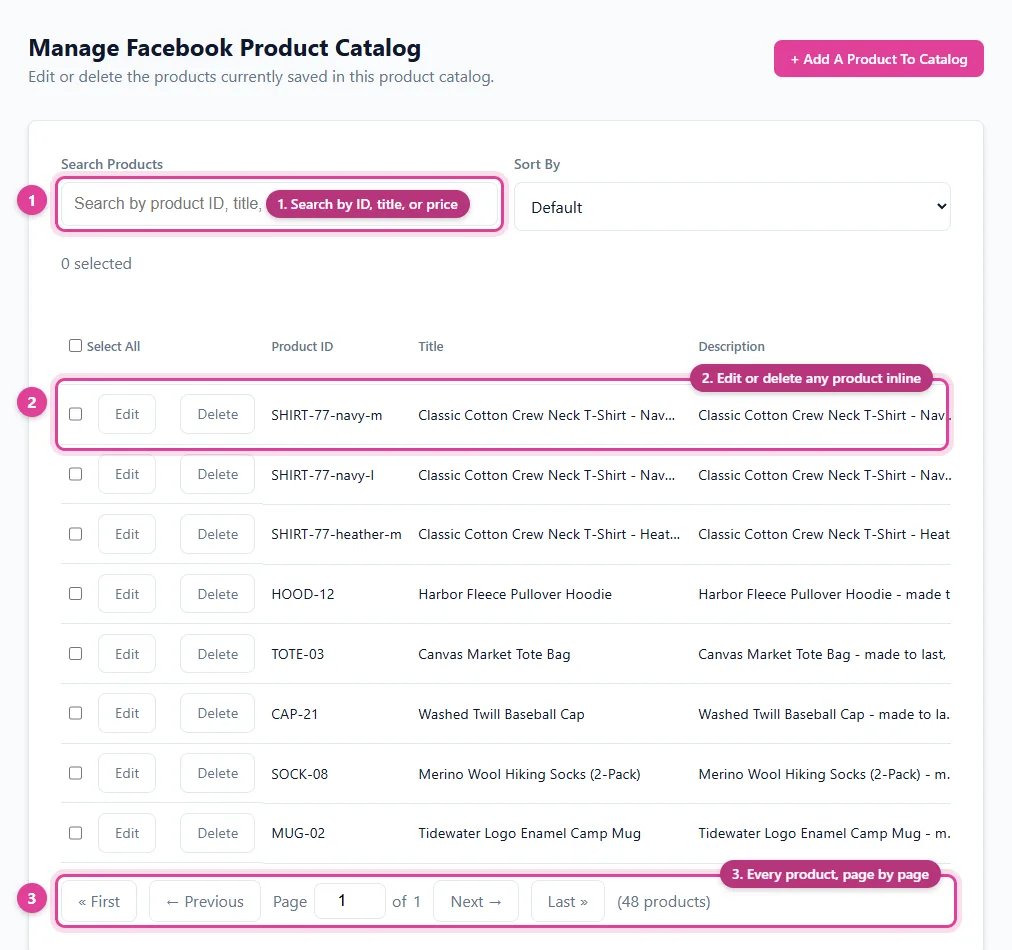
Connect it in Commerce Manager
Create a catalog for E-commerce products, go to Data sources, and add a data feed. Choose a URL, paste your feed address and its login, and set a daily schedule. The same catalog can then power Facebook and Instagram shopping where available, plus catalog ads.
Notes for popular site builders
- Squarespace, Wix, and similar builders may offer their own Meta connection. Check whether it covers your products and countries before building a feed.
- Custom or less common platforms almost never have one - a product feed is the standard route.
- Several sales channels? Keep one master product list and generate each platform's feed from it, so prices never drift apart.
Next steps
See Facebook Catalog Feed Errors, Fixed if Commerce Manager reports problems, and Scheduled Data Feeds in Meta Commerce Manager for every schedule setting.
Frequently asked questions
Can I add products to a Facebook catalog from any website?
Yes. Commerce Manager accepts products from any e-commerce website - by hand, from a spreadsheet, from a hosted product feed, or through the Meta Pixel.
What fields does a Facebook catalog need?
Every product needs id, title, description, availability, condition, price, link, image_link, and brand.
Does a Facebook catalog also work for Instagram shopping?
Yes. A catalog in Commerce Manager can power shopping features and catalog ads on both Facebook and Instagram, where those features are available.
How do I get a product image URL from my website?
Open the product page, right-click the main product image, and choose to copy the image address. Check that it opens on its own in a logged-out browser.
How do I keep my Facebook catalog in sync with my website?
Host your Facebook product feed at a URL and set Commerce Manager to fetch it on a schedule, such as daily, so price and stock changes flow through automatically.
Add products to Facebook from any website
Pin Data Connect builds your Facebook catalog in your browser - or captures products from your own pages with the free Chrome extension - and hosts your Facebook product feed at a private URL Commerce Manager fetches automatically.
See the Facebook Catalog Builder →
Save this guide for later
Pin it to one of your Pinterest boards so it's easy to find when you're ready to set things up.
Save to Pinterest