Guide · Google & Bing shopping feeds
How to Find Disapproved Products in Google Merchant Center
Google sorts every product in your feed into approved, limited, or disapproved - and only approved and limited products show in free listings and Shopping ads. Merchant Center tells you exactly why each of the others was held back.
This guide shows where to find them, the setting that hides some issues by default, how to fix many products at once, and when to request a review.
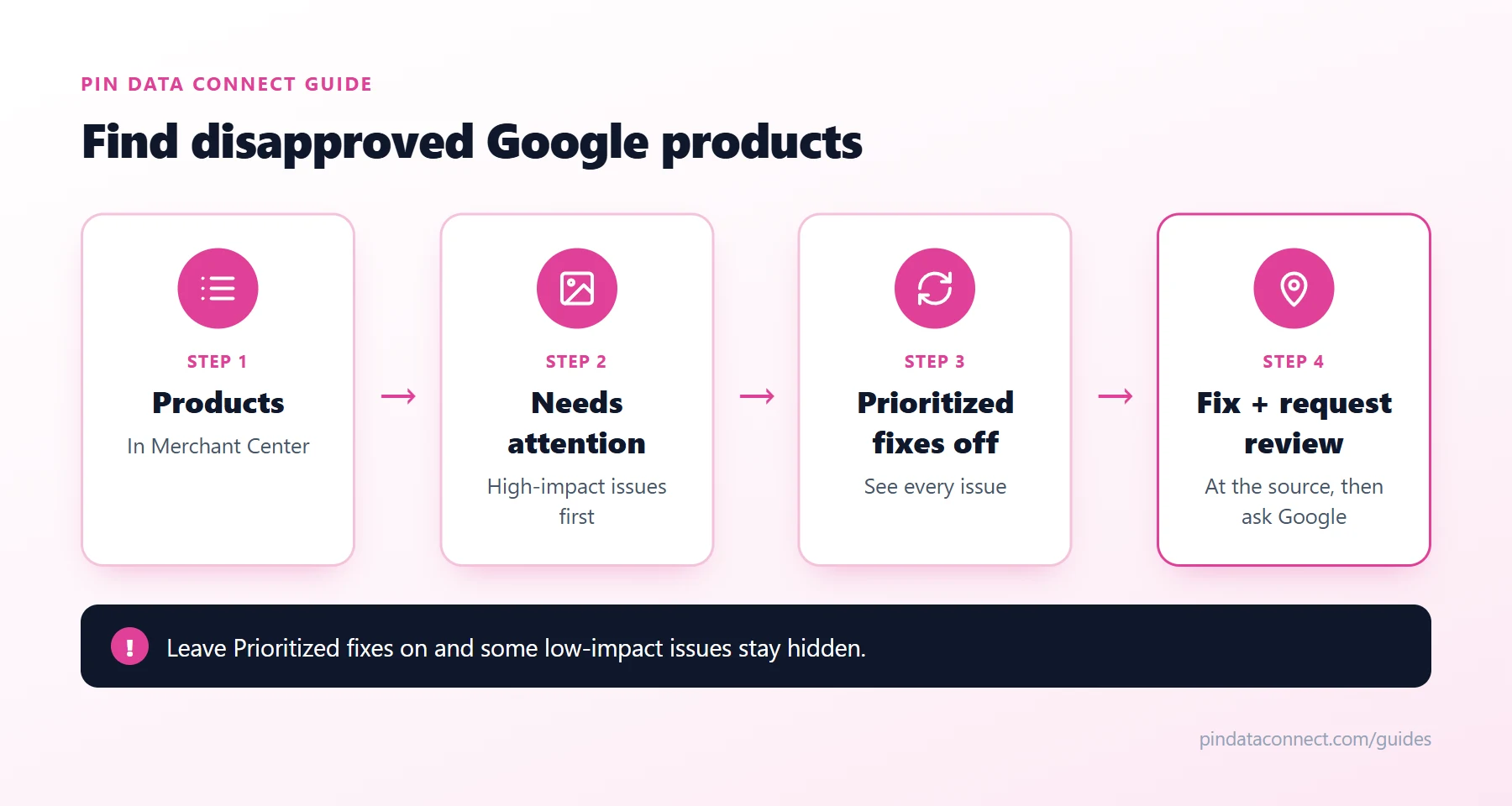
Where Google lists disapproved products
- In Merchant Center, open Products.
- Click Needs attention at the top. High-impact issues come first, with a full list of affected products below.
- Turn off Prioritized fixes to see every issue - with it on, issues with little impact may be hidden.
Disapproved vs. limited
- Disapproved products don't show at all, in some or all places - a missing price or image, a price that doesn't match your product page, or a policy problem.
- Limited products still show, but less - often a missing identifier like a GTIN, or missing details Google wants for that kind of product, such as clothing sizes and colors.
For identifiers and categories, see How to Set Up a Google Merchant Center Feed for a Small Store.
Fixing many products at once
Filter the Needs attention list to one issue and download it. Then fix the products where they come from - your catalog or store - so the next fetch carries the fix, rather than editing them one by one in Merchant Center, where your next upload would overwrite the edits.
Requesting a review
After fixing, open a product's details and say whether you fixed the issue or disagree with it, then request a review. Reviews can take several business days. If the review buttons are greyed out, check that you've completed identity verification and have products in your data source.
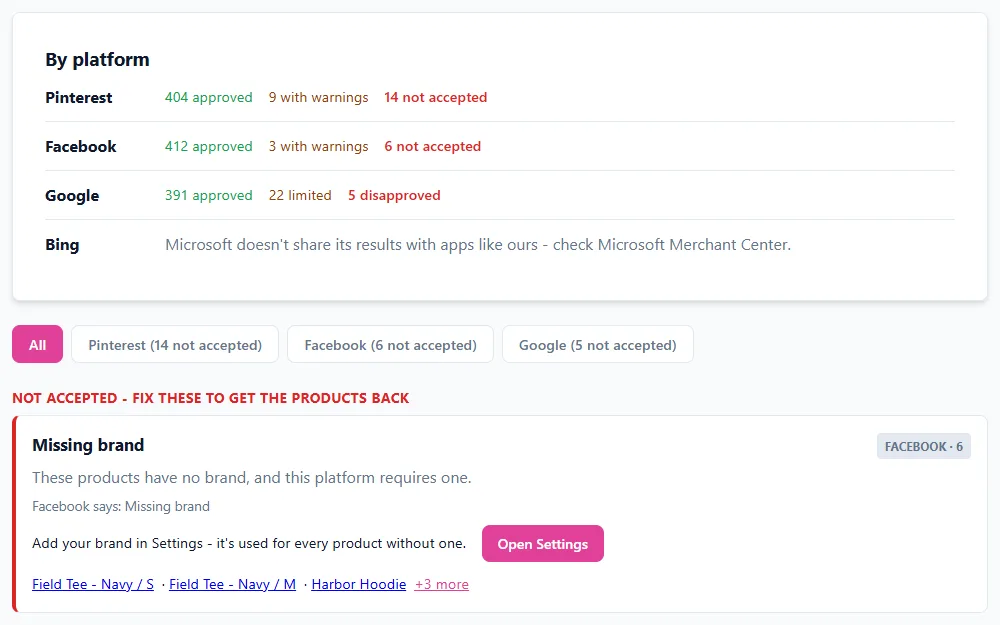
See it next to Pinterest and Facebook
If your Merchant Center data source was set up through Pin Data Connect's Connect button, Catalog Health reads Google's product statuses every morning and shows disapproved and limited products next to Pinterest's and Facebook's results, grouped by plain-English reason, with a button that opens the place to fix each one.
Frequently asked questions
Where do I find disapproved products in Google Merchant Center?
Open Products and click Needs attention. Turn off the Prioritized fixes toggle to see every issue, since issues with little impact may otherwise be hidden.
What is the difference between disapproved and limited?
Disapproved products don't show in some or all places. Limited products still show, but less often, usually because of a missing identifier or missing details.
How long does a Merchant Center review take?
Reviews can take several business days after you update your products and request a review.
Should I fix products in Merchant Center or in my feed?
In your feed's source - your catalog or store. Edits made only in Merchant Center can be overwritten by your next feed upload.
A Google catalog that tells you what went wrong
Pin Data Connect's Google Product Catalog Builder builds your Merchant Center feed in your browser, connects it for you, and shows which products Google disapproved or limited - with the fix for each problem - on its Catalog Health page.
See the Google Product Catalog Builder →
Save this guide for later
Pin it to one of your Pinterest boards so it's easy to find when you're ready to set things up.
Save to Pinterest