Guide · Google & Bing shopping feeds
How to Import a Google Merchant Feed Into Bing
If your products are already in Google Merchant Center, you don't need to build a Microsoft Merchant Center feed from scratch. Microsoft Advertising can import your Google Merchant Center feed on a schedule, so your products show in Microsoft Shopping on Bing with no extra data entry.
Here's how the Google import works, the alternative of pointing both at one feed URL, and what to check first.
Before you start
- A Microsoft Advertising account. Microsoft Merchant Center lives inside it, under Tools > Merchant Center.
- A verified website. Microsoft verifies your domain through Bing Webmaster Tools or a UET tag. A new UET tag has to record at least 50 events before the domain can be used.
- Product links on that domain. Every product
linkmust be under your store's verified URL. - A healthy Google feed. Problems in Google Merchant Center come across with the import, so fix them there first.
Option 1: Import from Google Merchant Center
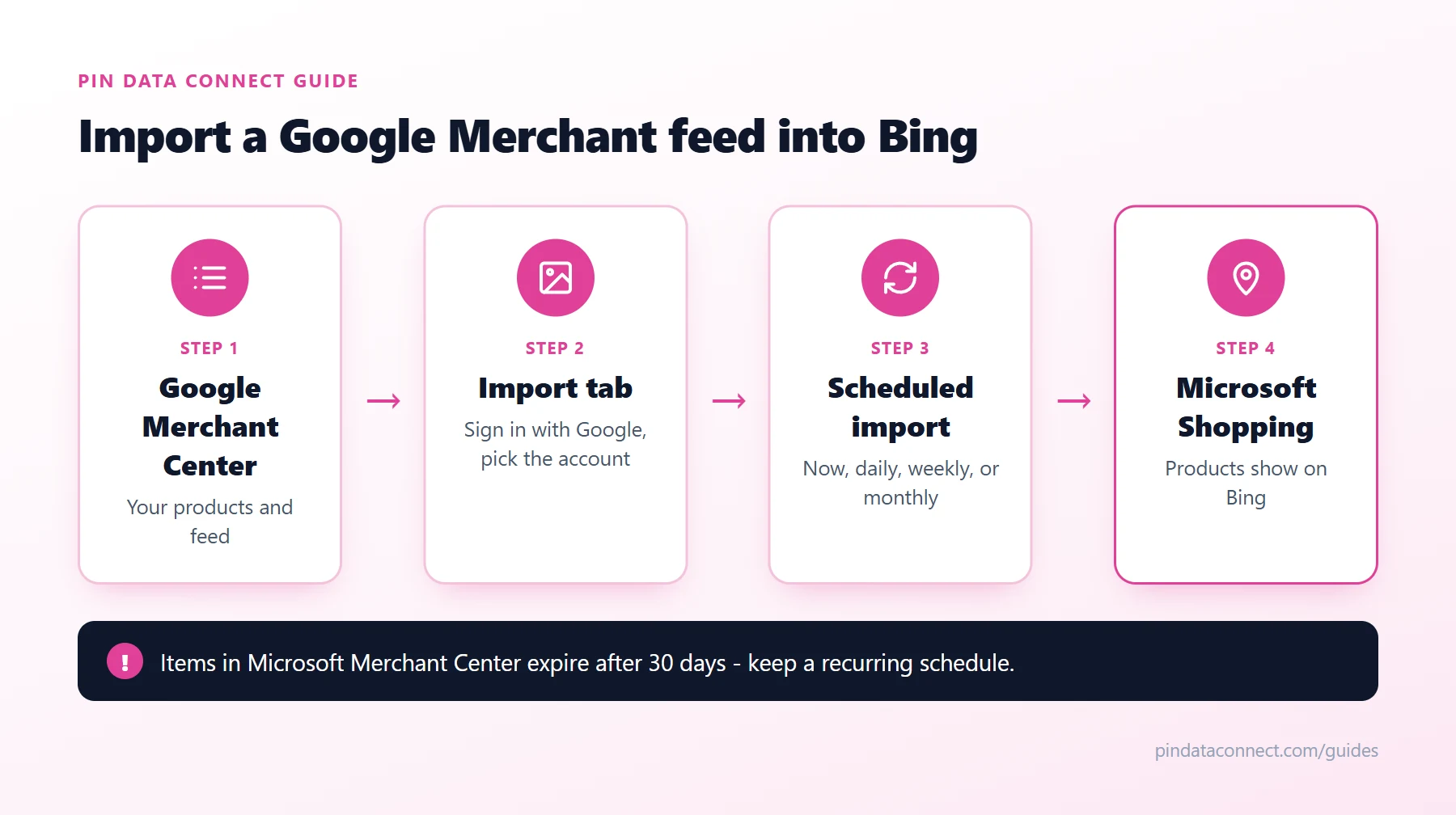
- In Microsoft Advertising, go to Tools > Merchant Center and select your store.
- Open the Import tab and choose New import.
- Sign in to the Google account that has access to your Merchant Center, then choose the Merchant Center account to import.
- Name the feed and set the country and language you sell in.
- Choose when to run it: Now for a one-time import, or a daily, weekly, or monthly schedule. Daily is the safest choice.
- If your product links include Google tracking parameters, optionally use Find and Replace - for example, change "google" to "bing".
- Choose your email notifications, review the summary, and start the import.
Your custom labels come across too, so product groups built on them keep working.
Option 2: Point both at the same feed URL
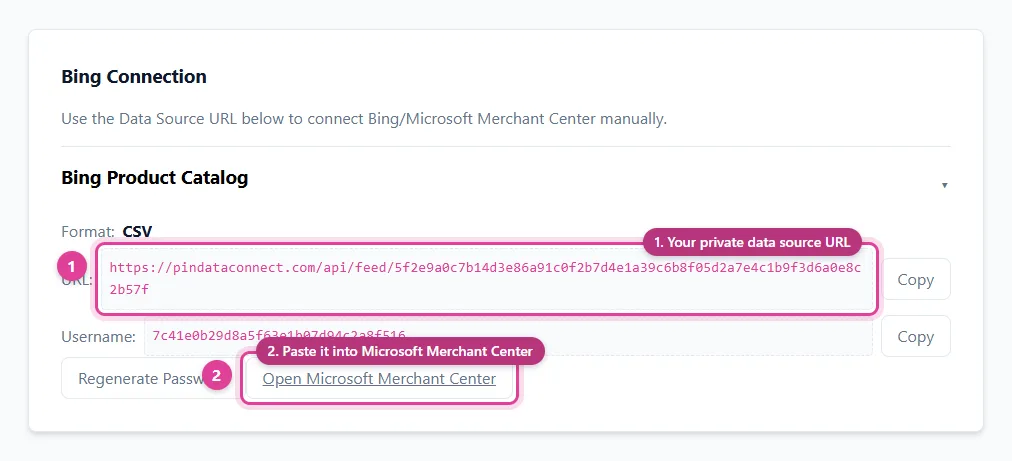
If your Google Merchant Center feed is a file hosted at a URL, you can also add it to Microsoft Merchant Center as a scheduled feed - Microsoft accepts Google-formatted XML files. (Building a separate Microsoft file instead? Start from our free Bing Catalog CSV Template Generator.) Both platforms then read the same file, and nothing depends on a link between your Google and Microsoft accounts.
What's different on Bing
- Category: Microsoft calls the field
product_category, but it's the same Google product category list. IDs and full paths both work. - Limits: titles can be up to 150 characters and descriptions up to 10,000. IDs must be unique across all of your feeds in a market.
- Expiry: items expire after 30 days unless they're refreshed, so use a recurring import or schedule rather than a one-time upload.
- Review: new items and changed titles, images, or links go through review, which can take up to 3 business days.
If the import isn't updating
- Be patient. It can take up to 48 hours for changes to process. Use Import now on a scheduled import to start one right away.
- Check permissions. If someone else, such as an agency, created the schedule, you may not be able to edit it. Create a new import instead.
- Re-import after Google account changes. A password or access change can break the connection. Start a fresh import.
- Stopping: signing out of Google doesn't stop a scheduled import. Delete the schedule to stop it.
New to feeds? Start with the pillar guide, How to Set Up a Google Merchant Center Feed for a Small Store, and Google Product Category: How to Pick the Right One.
Frequently asked questions
Can I use my Google Merchant Center feed for Bing?
Yes. Microsoft Advertising can import your products from Google Merchant Center into Microsoft Merchant Center, once or on a daily, weekly, or monthly schedule. You can also add a Google-formatted XML feed URL to Microsoft Merchant Center directly.
How do I import Google Merchant Center into Microsoft Merchant Center?
In Microsoft Advertising, go to Tools > Merchant Center, select your store, open the Import tab, choose New import, sign in to Google, pick your Merchant Center account, set the country, language, and schedule, then start the import.
How long does a Google import take to update on Bing?
Changes can take up to 48 hours to process. On a scheduled import, Import now starts an update right away.
Do I need to verify my website for Microsoft Merchant Center?
Yes. Your store domain must be verified through Bing Webmaster Tools or a UET tag, and every product link must be on that domain.
Why did my products disappear from Bing?
Items in a Microsoft Merchant Center feed expire after 30 days unless they are refreshed. A recurring import or scheduled feed keeps them active.
A Microsoft Merchant Center feed of its own
No Google Merchant Center account to import from? Pin Data Connect's Bing Product Catalog Builder builds your Microsoft Merchant Center feed in your browser and hosts it at a private URL Microsoft fetches on a schedule, so your items stay refreshed.
See the Bing Product Catalog Builder →
Save this guide for later
Pin it to one of your Pinterest boards so it's easy to find when you're ready to set things up.
Save to Pinterest