Guide · Facebook & Meta catalogs
How to See Which Products Facebook Rejected
Some of your products show in your Facebook and Instagram shopping, some don't, and Commerce Manager has an answer for each one - in a tab most sellers never open.
This guide shows where Meta lists rejected and flagged items, what each kind of problem means, the catch with its download, and how to watch it alongside your other catalogs.
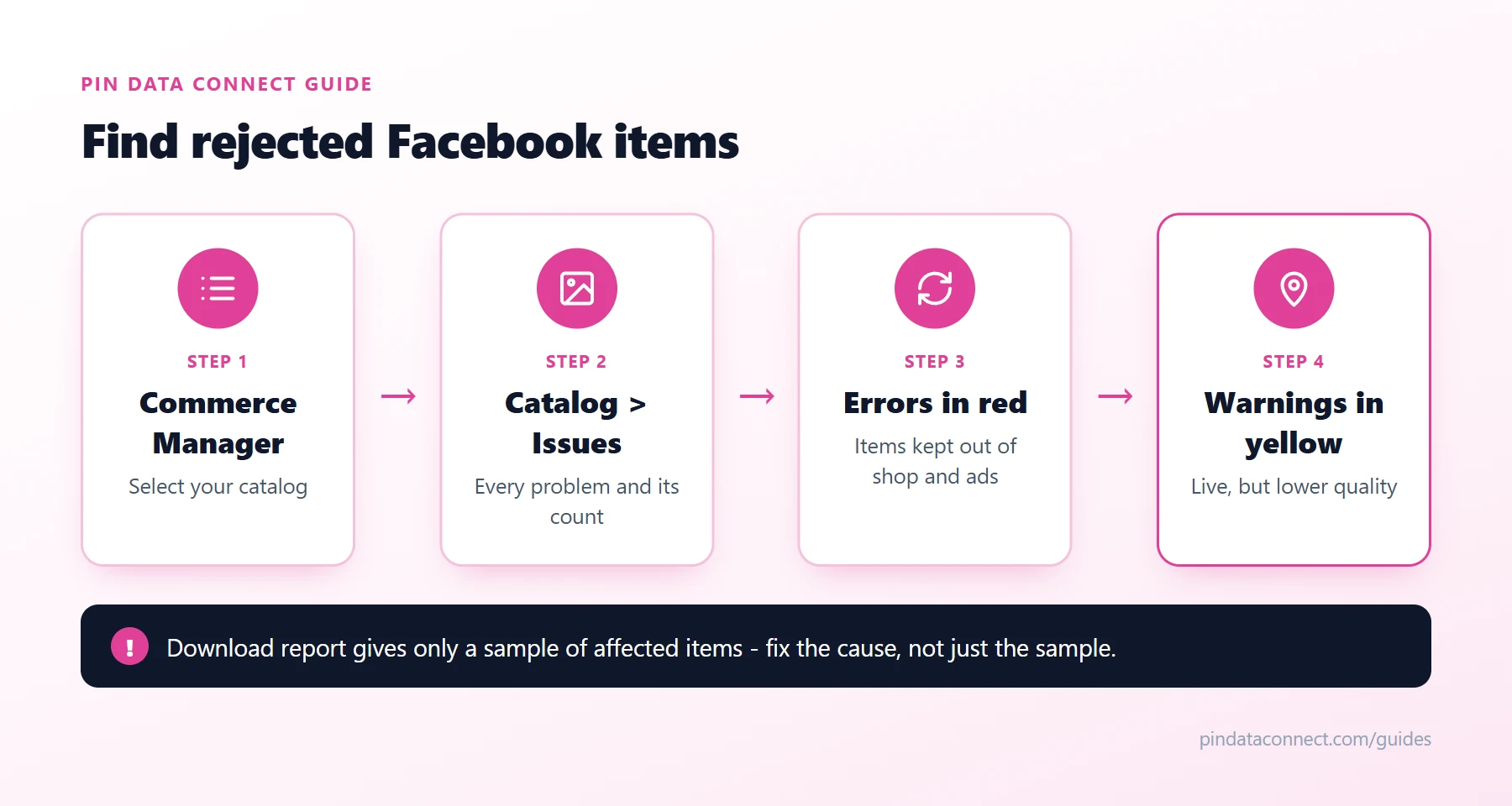
Where Facebook lists rejected items
- Open Commerce Manager and select your catalog.
- Open the Catalog tab and go to Issues.
- Each issue shows the problem, how many items it affects, and how to fix it.
Reading the issues
- Errors (red) can stop items from uploading or appearing in your shop and ads - a missing brand, price, or image, for example.
- Warnings (yellow) don't stop items from appearing, but lower your catalog's quality - missing optional details, say.
- Policy rejections are items Meta's review turned down. Edit the item so it complies and it's reviewed again automatically, or request a review if you think it was a mistake.
The most common error by far is a missing brand - Meta requires one on every item. For the others, see Facebook Catalog Feed Errors, Fixed.
The download is only a sample
Download report on an issue gives you a CSV of affected items - but only a sample of them. Fixing the sample and re-checking can take several rounds when an issue affects hundreds of items. Fix the cause instead: if every item is missing a brand, set one default brand at the source rather than editing items one by one.
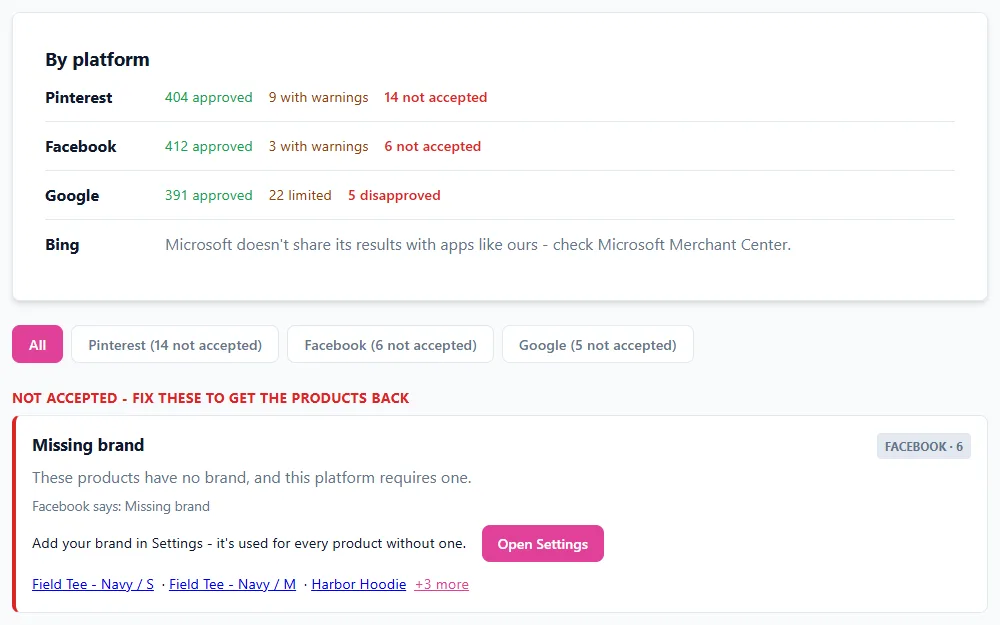
See it next to Pinterest and Google
If your catalog's data feed was set up through Pin Data Connect's Connect button, Catalog Health reads Facebook's results every morning and lists every flagged product it finds - not a sample - next to Pinterest's and Google's, grouped by plain-English reason, with a button that opens the place to fix it. Missing brand from Facebook and from Google show as one problem, so you fix it once.
Frequently asked questions
Where can I see which products Facebook rejected?
Open Commerce Manager, select your catalog, then open the Catalog tab and go to Issues. Errors are shown in red and warnings in yellow, each with the number of items affected.
Why is my Facebook catalog download missing items?
The Download report option in the Issues tab gives a CSV with a sample of the affected items, not all of them.
What does a policy rejection mean on Facebook?
Meta's review decided the item doesn't meet its commerce policies. Edit the item so it complies and it's reviewed again automatically, or request a review if you think it was rejected by mistake.
What is the most common Facebook catalog error?
A missing brand. Meta requires a brand on every item, so stores that don't record one need a default, usually the store's own name.
A Facebook catalog that tells you what went wrong
Pin Data Connect's Facebook Product Catalog Builder builds your catalog in your browser, connects it to Commerce Manager for you, and shows every product Meta flagged - with the fix for each problem - on its Catalog Health page.
See the Facebook Product Catalog Builder →
Save this guide for later
Pin it to one of your Pinterest boards so it's easy to find when you're ready to set things up.
Save to Pinterest