Pixels Pro & Fine Art America
Find your Pixels or Fine Art America artworks
Find your artworks
- Open Manage Artworks from the sidebar.
- Under 1. Find your artworks, enter your site's address in Your Site Address, such as
https://yoursite.com. - Click Find Artworks.
We read your site's artwork gallery and sitemap, slowly and following your site's robots.txt, and list every artwork you've published. Nothing is priced and no products are created at this step. A large site can take a while. If you see "Queued", another site is being read first, and yours starts right after.
Your artwork list
- Not processed: artworks whose products you haven't imported yet. This is your to-do list.
- Processed: artworks you've imported. An artwork moves here automatically when you import it.
- All: everything. Use Search Artworks to find one by name.
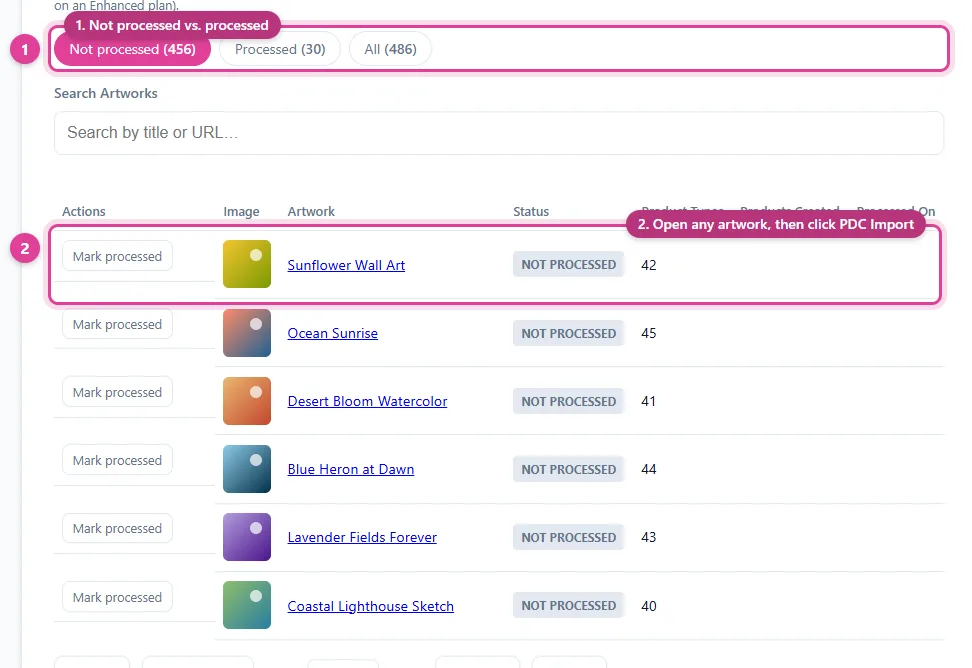
Each artwork links to its page on your site, which is where you import it from.
Mark an artwork processed (or not)
Use Mark processed to move an artwork off your to-do list without importing it, for example one you don't want on Pinterest. Mark not processed moves it back. Marking an artwork by hand doesn't create or delete products, and doesn't count toward your plan's artwork limit.
Published new artworks?
Click Find Artworks again any time. New artworks are added as Not processed, and artworks you've already processed stay processed.
Still need help?
Chat with us using the chat button in the corner of this page, or send us a message and we'll reply by email.
Contact Us