Dashery
Add your Dashery designs to a Pinterest catalog
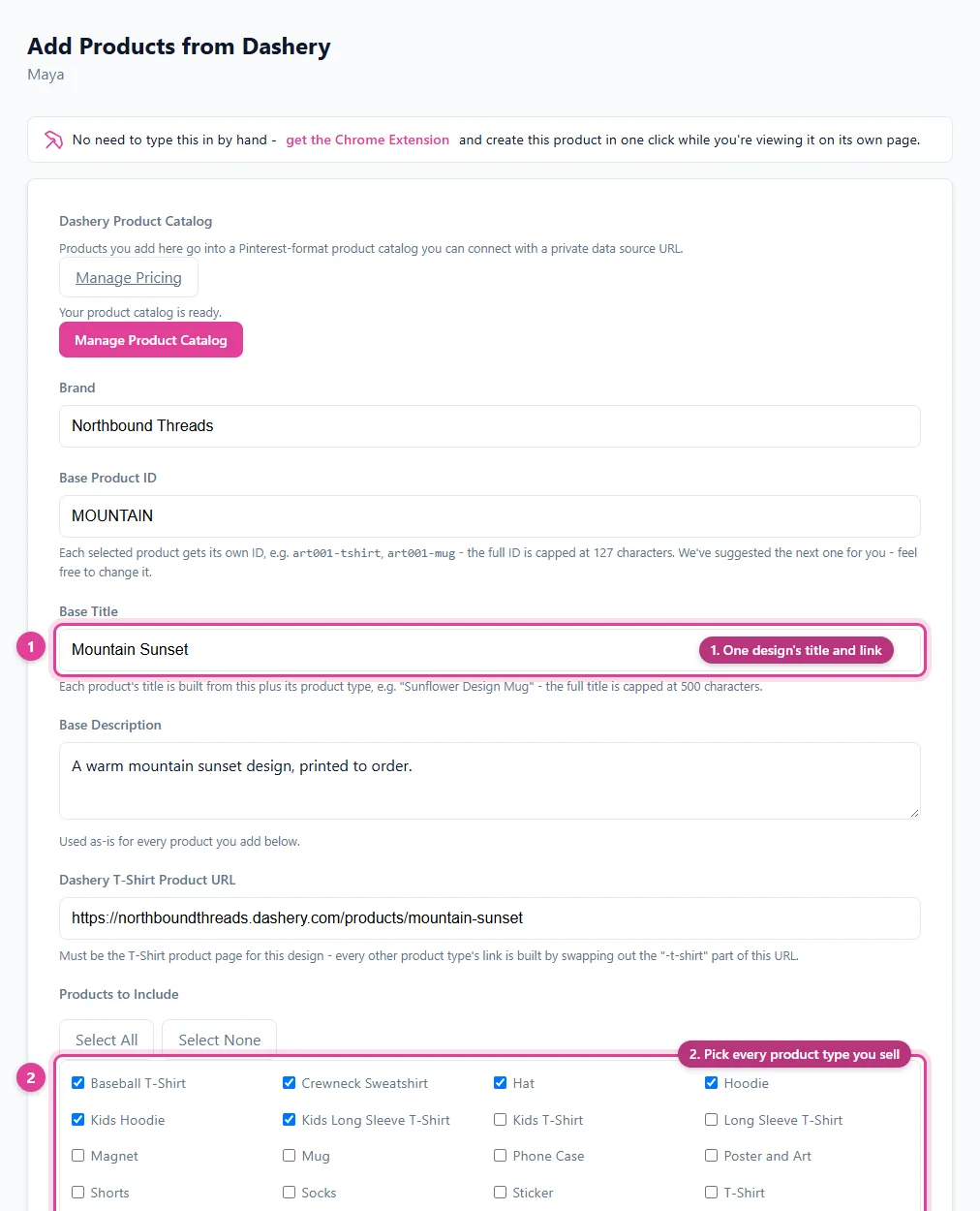
The Dashery Add Product form turns one design into a product for every product type you choose: t-shirts, hoodies, mugs, posters, stickers, and more.
Add a design
- In the sidebar, under your Dashery catalog, click Add A Product to Catalog.
- Enter a Base Product ID (such as
art001), Base Title, and Base Description. Each product's ID and title are built from these plus its type, such asart001-mugand "Sunflower Design Mug". - Paste the design's Dashery T-Shirt Product URL. It must be the T-shirt page for this design: every other product type's link is built from it.
- Tick the Products to Include (or Select All), and choose availability and condition.
- Click Build Product List.
- Under Review Before Adding, enter each product's price (just the number) and image link, and adjust any titles.
- Click Add Selected Products to Catalog.
Save time on prices: set a default price for each product type once, and it's filled in for every new design. See Set default Dashery prices.
One product at a time with the Chrome extension
On a Dashery product page, the Chrome extension fills in the title, price, and image, detects the product type, and picks its Google Product Category for you. See Add a product with the Chrome extension.
Connect to Pinterest
Your Dashery catalog connects through the Pinterest Connection card on Connections. See Connect your catalog to Pinterest. For strategy, see our guide to Dashery to Pinterest.
Still need help?
Chat with us using the chat button in the corner of this page, or send us a message and we'll reply by email.
Contact Us